Display Widgets
Display Widgets are specialized visualizations that can be used as a Graphic Source in Feedback Handlers. They provide dynamic, data-driven displays for monitoring and indicating values on panel displays.
Widgets are particularly useful for:
- Audio monitoring - Display audio levels with peak indicators
- Value indicators - Show continuous values like iris position, focus, or fader levels
VUMeter Widget
The VUMeter widget displays audio levels with optional peak indicators. It supports both mono and stereo configurations and can be customized with dB-scaled ranges and background graphics.
Use Cases
- Monitoring audio input/output levels on ATEM switchers
- Displaying mixer channel levels
- Audio source level monitoring
- Any normalized value display with peak indication
Configuration Fields
| Field | Description | Required |
|---|---|---|
| Type | Must be set to VUMeter | Yes |
| Subtype | Rendering style: empty (default dynamic), Fixed176x32 (classic bar), or Fixed176x32w (wide blocks). | No |
| Title | Title text shown above the meter. Supports IO references with {} syntax. | No |
| AltTitle | Alternative title text. If provided, this is used instead of Title. | No |
| Data1 | Primary level source (left channel or mono). Must be normalized (0-1000). | Yes |
| Data2 | Secondary level source (right channel). Leave empty for mono display. | No |
| Data3 | Primary peak indicator (left channel or mono peak). | No |
| Data4 | Secondary peak indicator (right channel peak). Leave empty for mono. | No |
| RangeMapping | Comma-separated values for custom range mapping (e.g., dB scale). | No |
| BackgroundFile | Custom background image (only for fixed subtypes). Available: VUMeter_12dB_176x32.png, VUMeter_0dB_176x32.png, VUMeter_wide_12dB_176x32.png, VUMeter_wide_0dB_176x32.png | No |
Note: All Data fields require the :Current:Normalized modifier to provide values in the 0-1000 range.
Mono vs Stereo
The VUMeter automatically detects whether to display in mono or stereo mode:
- Mono: Only specify Data1 (and optionally Data3 for peak)
- Stereo: Specify both Data1 and Data2 (and optionally Data3 and Data4 for peaks)
VUMeter Subtypes
The Subtype field controls the rendering style and size of the VUMeter:
Default (empty/not set):
- Dynamic sizing based on display component
- Block-based level display
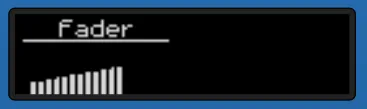
- Title shown with line separator
Fixed176x32:
- Fixed 176×32 pixel size
- Classic horizontal bar style
- Rotated title text (90° clockwise)
- Works with custom background images
Fixed176x32w:
- Fixed 176×32 pixel size
- Block-based wide rendering style
- Rotated title text (90° clockwise)
- Works with custom background images
When using fixed subtypes, you can specify a BackgroundFile to overlay dB scale markings or other visual guides. The background image must be placed in the embedded/gfx/widgets/ directory or selected from the available presets.

Range Mapping for dB Scales
Audio levels are often measured in decibels (dB). To properly display dB-scaled audio levels, use the RangeMapping field to map the linear 0-1000 range to logarithmic dB values.
Example: dB Scale Mapping
For a standard audio meter with -60dB to +12dB range:
RangeMapping: "0,77,154,231,308,385,462,538,615,692,769,846,923,1000"
This maps to dB values: -60, -54, -48, -42, -36, -30, -24, -18, -12, -6, 0, +6, +12
Without RangeMapping, the meter displays linearly from 0 to 1000.
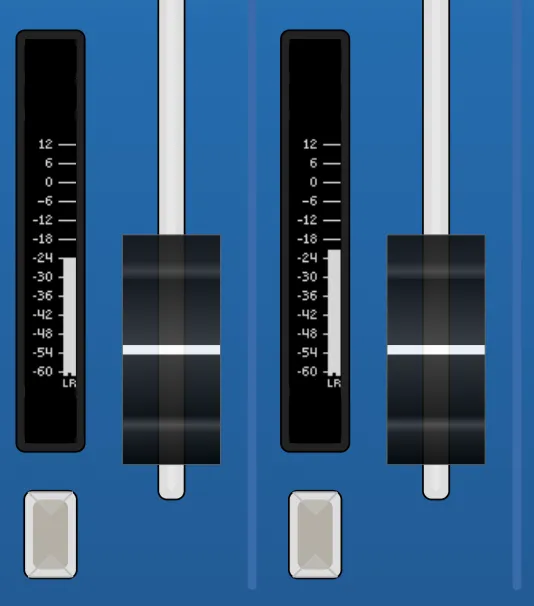
Display a single audio channel with peak indicator:
{
  "DisplayGraphics": {
    "DataSource": "Widget",
    "Widget": {
      "Type": "VUMeter",
      "Title": "Audio Input",
      "Data1": {
        "Raw": "DC:my-device/1/AudioLevel/:Current:Normalized"
      },
      "Data3": {
        "Raw": "DC:my-device/1/AudioPeak/:Current:Normalized"
      },
      "RangeMapping": "0,77,154,231,308,385,462,538,615,692,769,846,923,1000"
    }
  }
}
Result: A single vertical audio meter with dB scaling and peak indicator.

Advanced Example: Stereo Audio Meter
Display left and right audio channels with peaks:
{
  "DisplayGraphics": {
    "DataSource": "Widget",
    "Widget": {
      "Type": "VUMeter",
      "Title": "L/R Levels",
      "Data1": {
        "Raw": "DC:my-device/1/AudioLevelLeft/:Current:Normalized"
      },
      "Data2": {
        "Raw": "DC:my-device/1/AudioLevelRight/:Current:Normalized"
      },
      "Data3": {
        "Raw": "DC:my-device/1/AudioPeakLeft/:Current:Normalized"
      },
      "Data4": {
        "Raw": "DC:my-device/1/AudioPeakRight/:Current:Normalized"
      },
      "RangeMapping": "0,77,154,231,308,385,462,538,615,692,769,846,923,1000"
    }
  }
}
Result: Two side-by-side vertical meters showing left and right channels with individual peak indicators.

Strength Widget
The Strength widget displays a single horizontal bar indicator, perfect for showing continuous values like iris position, focus distance, or fader levels.
Strength Use Cases
- Camera iris position indicator
- Focus position display
- Motorized fader position feedback
- Any single normalized value display
Strength Configuration Fields
| Field | Description | Required |
|---|---|---|
| Type | Must be set to Strength | Yes |
| Title | Title text shown above the bar. Supports IO references with {} syntax. | No |
| Value | Value text shown on the left side (rotated 90°). Supports IO references. | No |
| Data1 | Value source for the bar indicator. Must be normalized (0-1000). | Yes |
| RangeMapping | Comma-separated values for custom range mapping. | No |
Note: Data2, Data3, and Data4 are not used by the Strength widget.
Basic Example: Iris Position Indicator
Display camera iris position with f-stop value:
{
  "DisplayGraphics": {
    "DataSource": "Widget",
    "Widget": {
      "Type": "Strength",
      "Title": "Iris",
      "Value": "F{DC:my-camera/1/FStop}",
      "Data1": {
        "Raw": "DC:my-camera/1/Iris/:Current:Normalized"
      }
    }
  }
}
Result: A horizontal bar showing iris position with "F2.8" (or current f-stop) displayed on the left side.

Example: Fader Position Indicator
Display the current position of a motorized fader:
{
  "DisplayGraphics": {
    "DataSource": "Widget",
    "Widget": {
      "Type": "Strength",
      "Title": "Fader Position",
      "Data1": {
        "Raw": "Behavior:IOReference:Current:Normalized"
      }
    }
  }
}
Result: A horizontal bar showing the current fader position from 0 to 100%.
Important Notes
Data Source Requirements
All widget Data fields (Data1, Data2, Data3, Data4) must provide normalized values in the range 0-1000.
Always use the :Current:Normalized modifier when referencing parameters:
- ✅ Correct:
DC:my-device/1/AudioLevel/:Current:Normalized - ❌ Incorrect:
DC:my-device/1/AudioLevel/:Current
Without normalization, widgets will not display correctly.
Caching and Performance
Widget rendering is optimized with time-based caching (maximum 25 frames per second). This ensures smooth updates without excessive CPU usage.
You can control caching behavior using the CacheExpiration field on the parent DisplayGraphics object:
{
  "DisplayGraphics": {
    "DataSource": "Widget",
    "Widget": { ... },
    "CacheExpiration": 100
  }
}
This is a time value in milliseconds. Lower values provide faster updates but may increase CPU usage.
Title Text with Parameter References
Both Title and AltTitle fields support dynamic text using IO references:
{
  "Title": "{Var:ChannelName} - {DC:my-device/1/AudioLevel/:Current}dB"
}
This allows widget titles to display real-time parameter values and variable contents.
If AltTitle is specified and not empty, it will be used instead of Title.