Package Management
The Packages page provides tools to install, update, and manage software packages on your SKAARHOJ device. These software packages might be
- device cores (core-...)
- system applications (like reactor, system-manager, hardware-manager or skaarOS)
- Other Applications, like XPanel-Touch, Producer-Assistant or Testtube
Package Installation
Online Installation
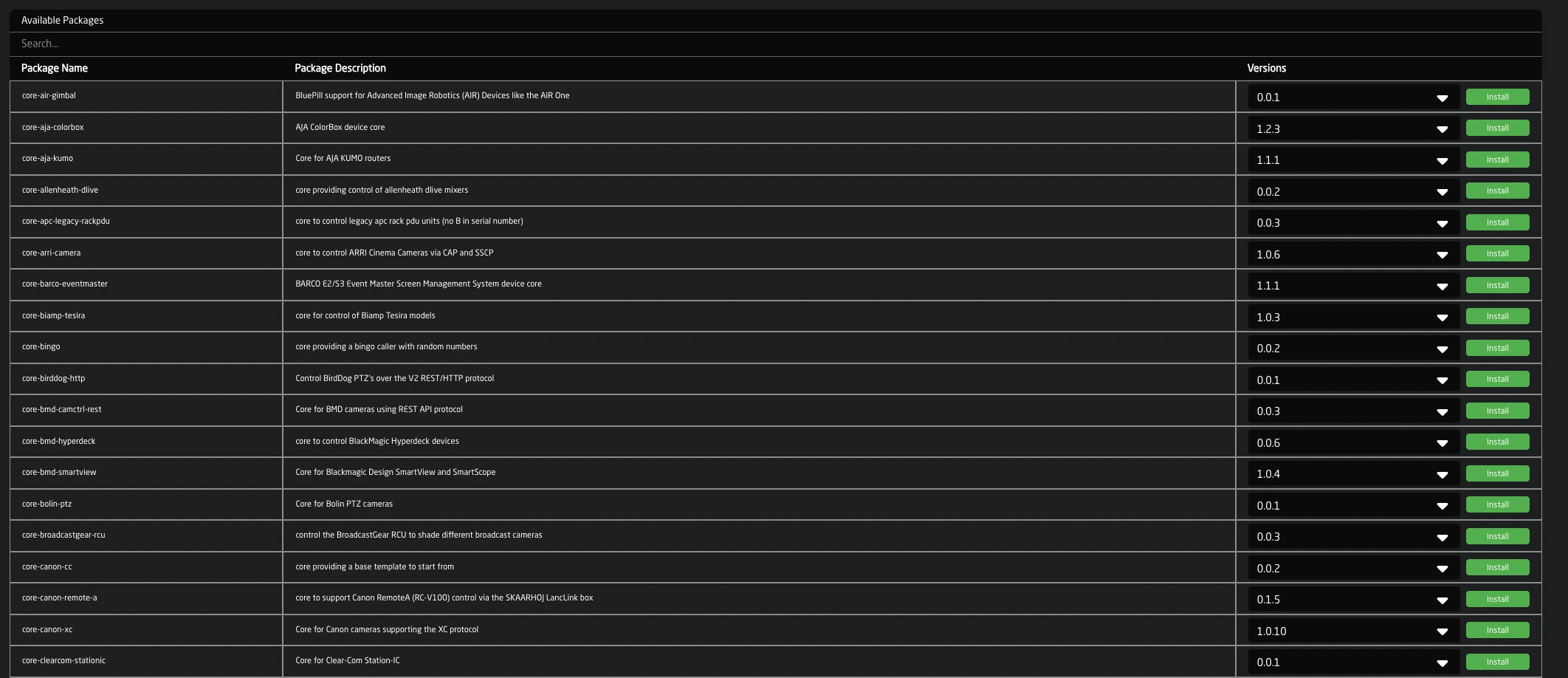
When the device has internet access, packages can be installed directly from the SKAARHOJ package repository:
- Navigate to Packages in the main menu
- Scroll to Available Packages
- Select the desired version from the dropdown
- Click Install
The package will be downloaded, verified, and installed automatically.
Offline Installation
For devices without internet access, packages can be uploaded manually:
- Click Upload and install package (or press
Alt+U) - Select a
.ipkspackage file from your computer - The package will be verified and installed
Package files can be downloaded from pkg.skaarhoj.com on a computer with internet access.

System Updates
To update skaarOS itself:
- Locate skaarOS in the Installed Packages list
- Select the target version from the dropdown
- Click Update
Alternatively, upload a .raucb system update bundle using the upload function. The device will reboot to apply system updates.

License Installation
License files extend device capabilities. Normally they will be assigned automatically if your controller has access to the Internet. They can also be installed offline if needed, just the same as any other package
- Click Upload and install package
- Select your
.licor.licslicense file - The license will be validated and applied
Installed Packages
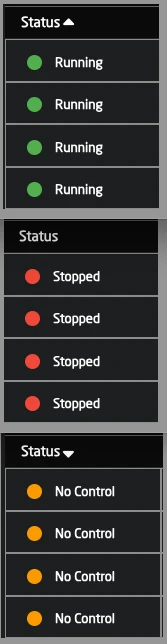
The Installed Packages section shows all packages on your device with:
| Column | Description |
|---|---|
| Status | Green = running, Red = stopped |
| Settings | Link to package configuration |
| Name | Package identifier |
| Description | Package purpose |
| Versions | Installed version and available updates |
Package Controls
Right-click a package for additional options:
- Start/Stop - Control the service
- Enable/Disable - Toggle autostart on boot
- Download Logs - Export package logs
- Uninstall - Remove the package
Note: System packages (hardware-manager, system-manager) cannot be uninstalled or stopped
Package Configuration
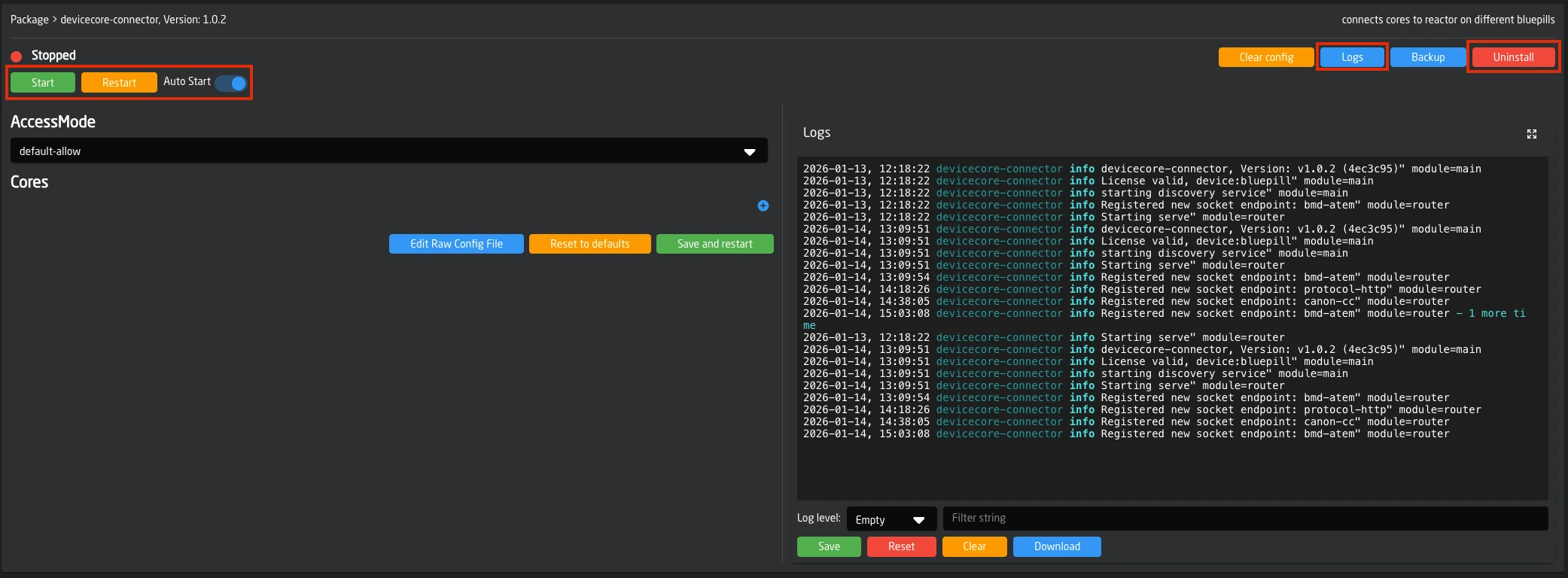
Click the settings icon next to a package to access its configuration page.

Configuration Methods
Settings Form: The default view presents configuration options as a form for the package's configuration.
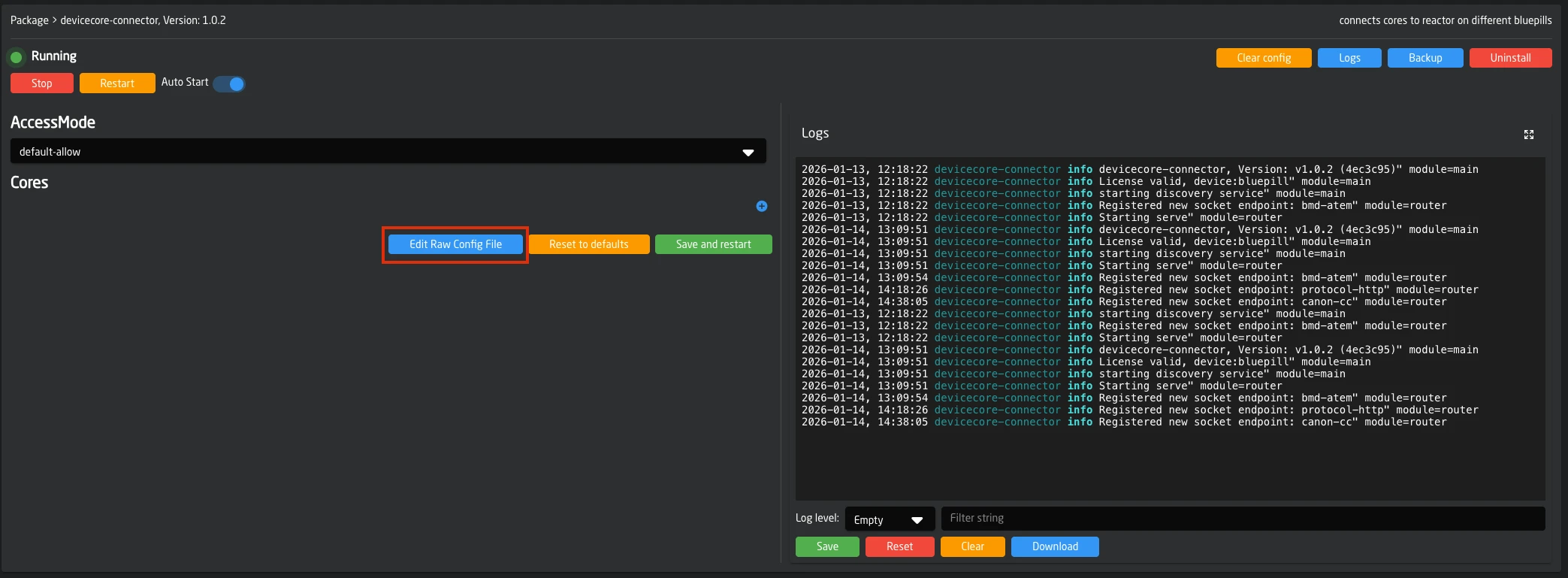
Raw Config file editing: Click Edit Raw Config File to directly edit the underlying TOML configuration file.
Configuration Actions
| Button | Action |
|---|---|
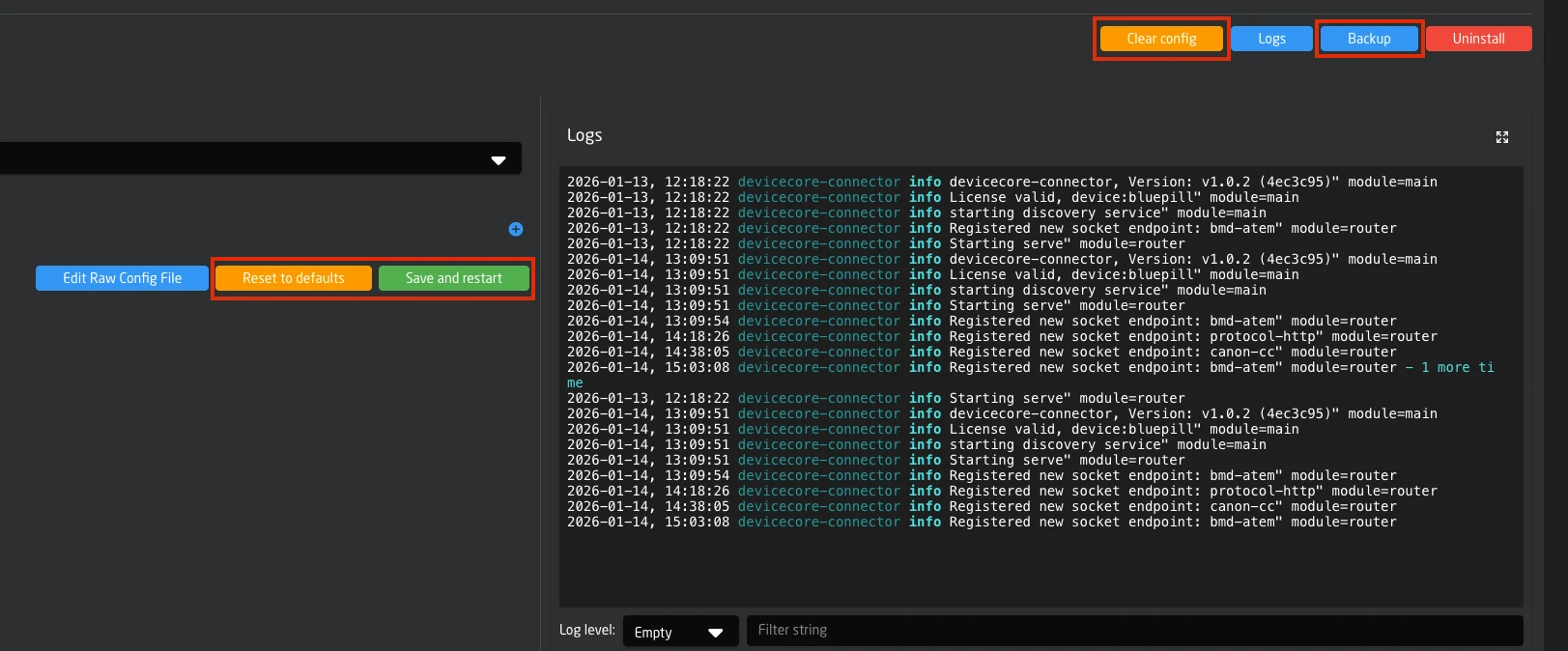
| Save and Restart | Apply changes and restart the service |
| Reset to Defaults | Revert all settings to default values |
| Clear Config | Delete all configuration and data of the package. (requires confirmation) |
| Backup | Download configuration backup, this is useful for support cases |
Log Viewer
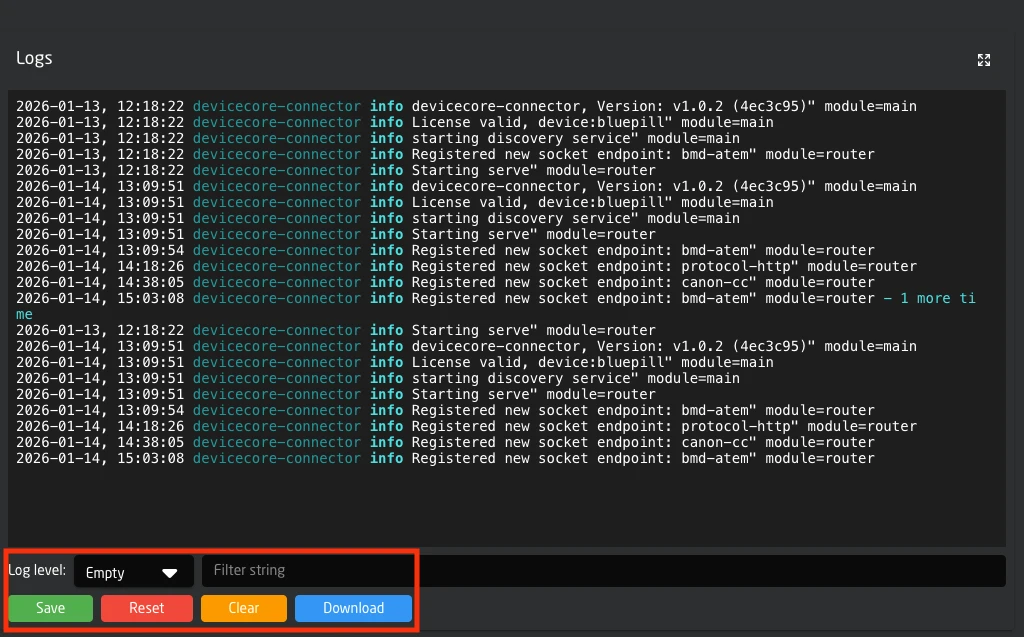
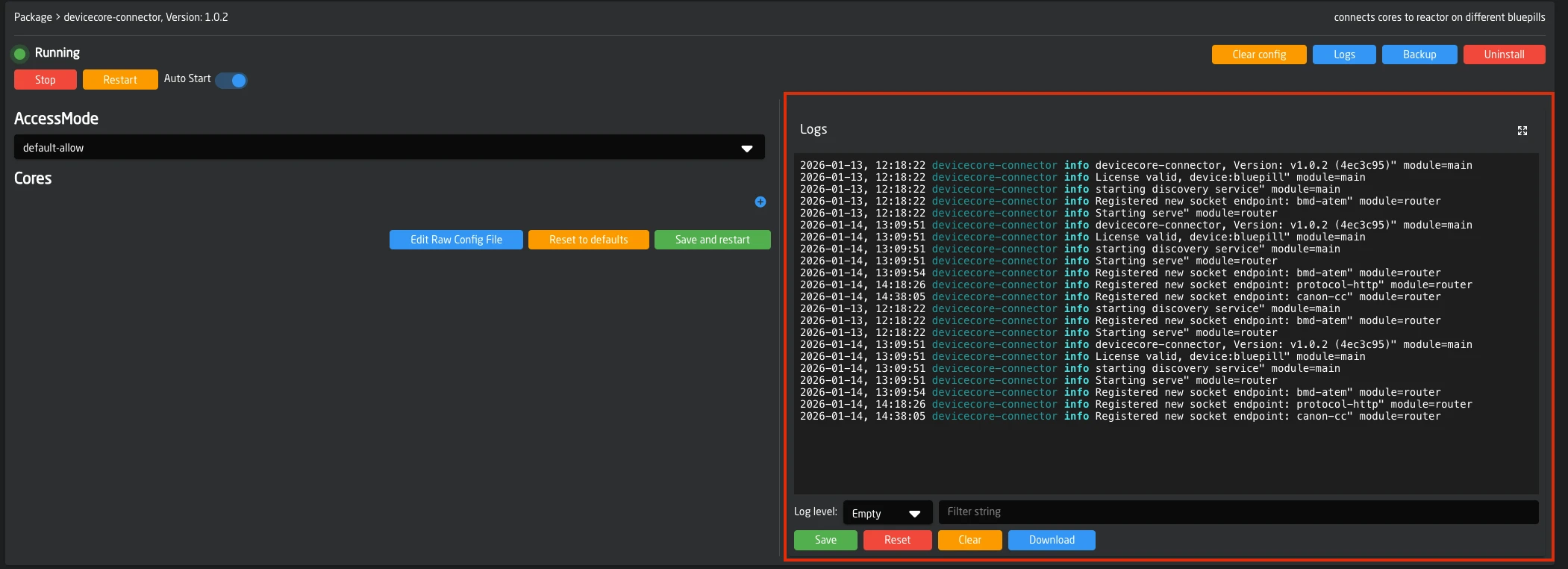
The log viewer displays real-time output from package services.
Controls
| Control | Function |
|---|---|
| Module dropdown | Select which package logs to view |
| Log Level | Filter by severity (Trace, Debug, Info, Warn, Error) |
| Clear | Clear the log display |
| Download | Export logs as compressed archive |
Logs stream in real-time. Duplicate messages are grouped with a counter to reduce noise.
You can download logs from all packages at once from the Settings page. This is useful when creating support requests or diagnosing system-wide issues.