Built-in Scripting Engine
In some cases, more flexibility is needed than what can be achieved using Virtual Triggers and Variables alone. For these situations, Reactor offers a built-in JavaScript scripting engine that allows you to write custom logic for complex automation tasks.
The scripting engine only supports JavaScript ES5. Modern JavaScript features such as let, const, arrow functions, template literals, classes, and other ES6+ syntax are not available. Write all scripts using ES5-compatible syntax.
When to use scripting instead of Virtual Triggers:
- You need complex logic with loops or conditional branching
- You need to transform or parse data before using it
- You want to implement state machines or multi-step workflows
- You need to perform lookups against Settings Tables based on several conditions
There are two ways scripts can work in Reactor:
- Event Scripts - Defined on a Behavior, triggered by hardware events (button press, encoder turn, etc.)
- Layer Scripts - Defined on a Layer, run continuously while the layer is active
Event Scripts on Behaviors
Event Scripts are attached to behaviors and execute when the behavior receives a hardware event. They are ideal for one-shot actions like sending an email, executing a complex transition sequence, or performing a series of operations in response to a button press.
Adding an Event Script
To add an Event Script to a behavior:
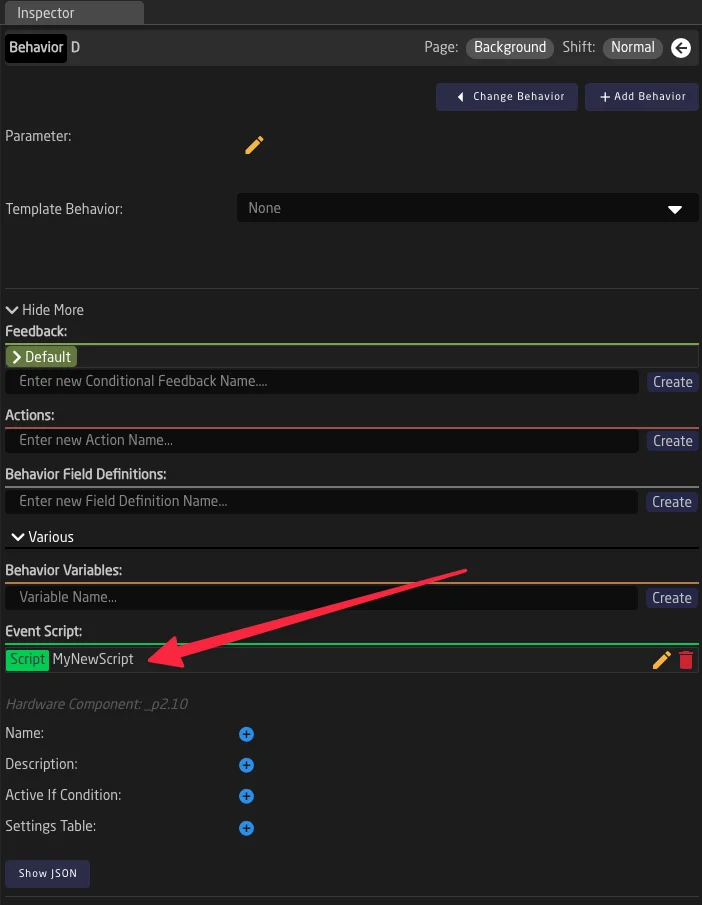
- Select the behavior in the configurator
- Open "Show More" in the inspector
- Scroll down to find the "Event Script" section
- Add a new script
Script Properties
Each script has the following properties:
| Property | Description |
|---|---|
| Name | A descriptive name for the script |
| Description | Explanation of what the script does |
| ActiveIf | A condition that determines if the script should run. Leave empty to always run |
| Script | The JavaScript code to execute |
| MaxRunTime | Maximum runtime in seconds. Set to -1 for unlimited runtime |
For Event Scripts, if MaxRunTime is not set (or set to 0), the script will have a default timeout of 100ms between Sleep() calls. For longer operations, set an appropriate MaxRunTime value.
Example: Simple Logging Script
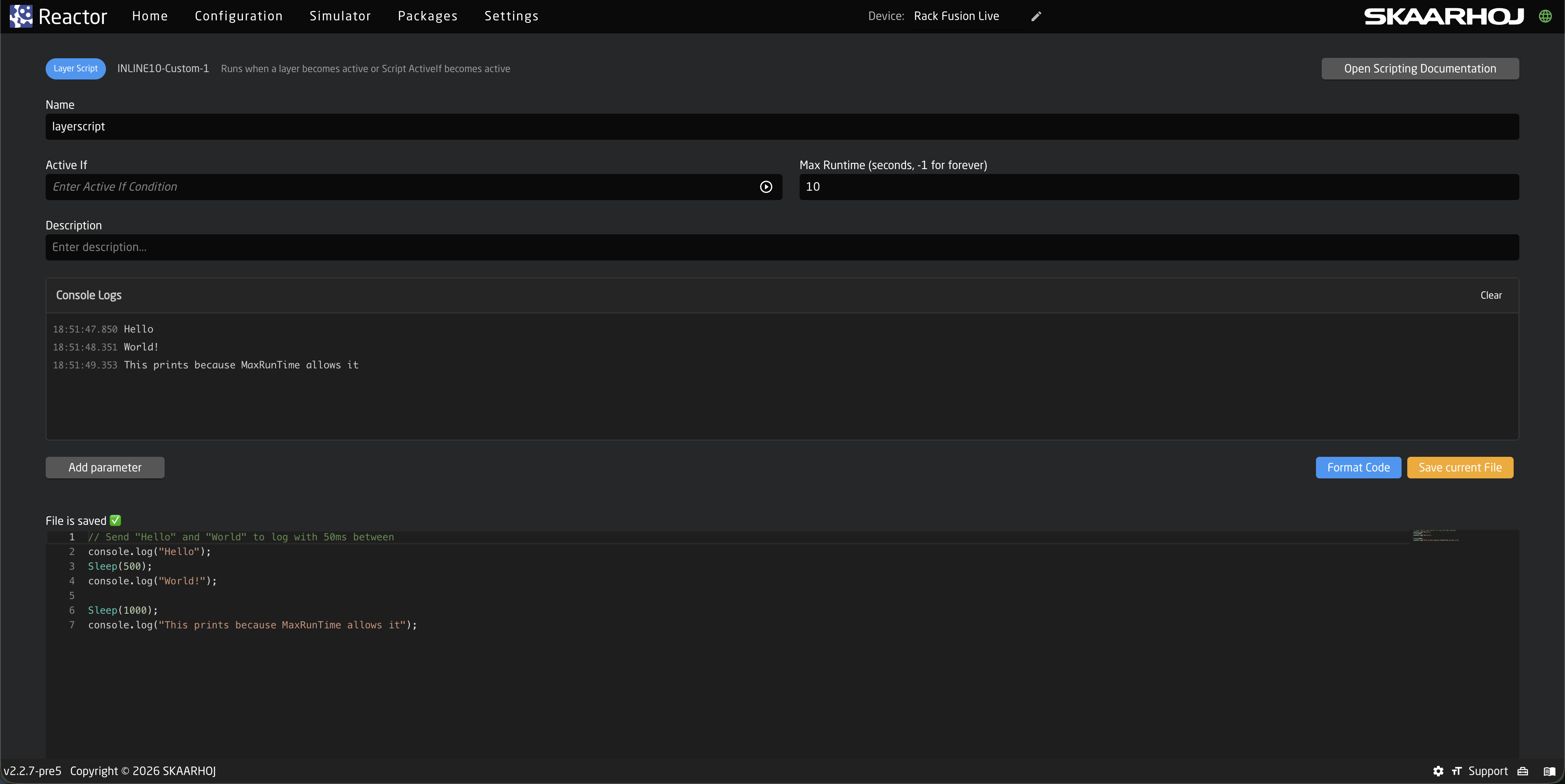
This script demonstrates basic console logging with timing:
// Send "Hello" and "World" to log with 50ms between
console.log("Hello");
Sleep(50);
console.log("World!");

Sleep(100);
console.log("This prints because MaxRunTime allows it");
Example: Responding to Button Press
Most Event Scripts should check what type of event triggered them before taking action:
var event = GetEvent();

// Only act on button press (not release)
if (event.Binary != undefined && event.Binary.Pressed) {
    console.log("Button was pressed!");

    // Get current value of a variable
    var currentValue = GetIOReferenceFirstValue("Var:MyVariable");
    console.log("Current value: " + currentValue);

    // Set a new value
    SetIOReferenceValues("Var:MyVariable", "newValue");
}
The event object can contain:
event.Binary- Button press/release withPressed(true/false) andEdgepropertiesevent.Pulsed- Encoder turn withValue(positive = clockwise, negative = counter-clockwise)event.Analog- Analog input (fader, potentiometer) withValue(0-1000)
Layer Scripts
Layer Scripts are defined on layers rather than behaviors. They run continuously while their parent layer is active, making them ideal for monitoring state and reacting to changes over time.
Adding a Layer Script
To add a script to a layer:
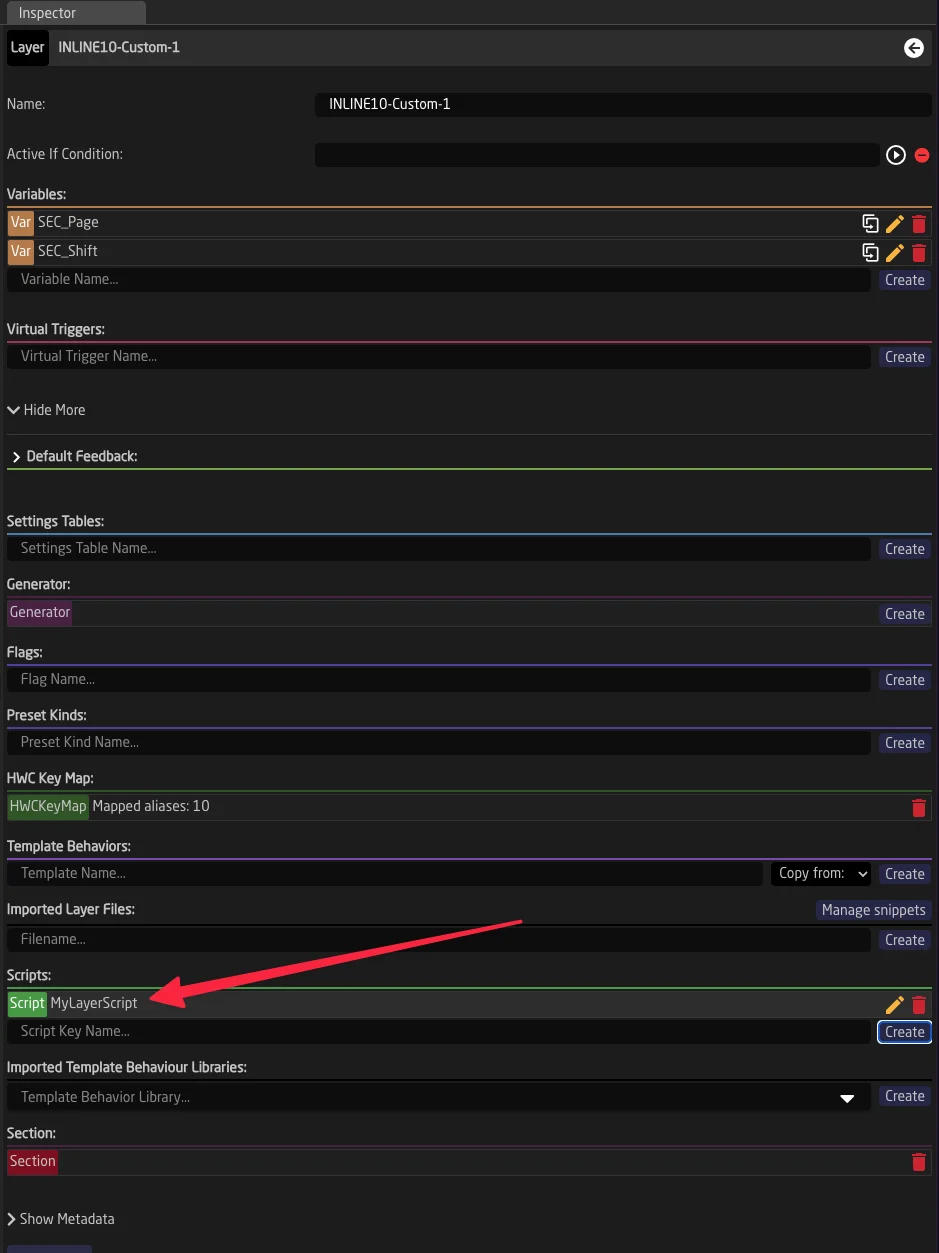
- Click on a layer in the tree to select it
- Open "Show More" in the inspector
- Find the "Scripts" section
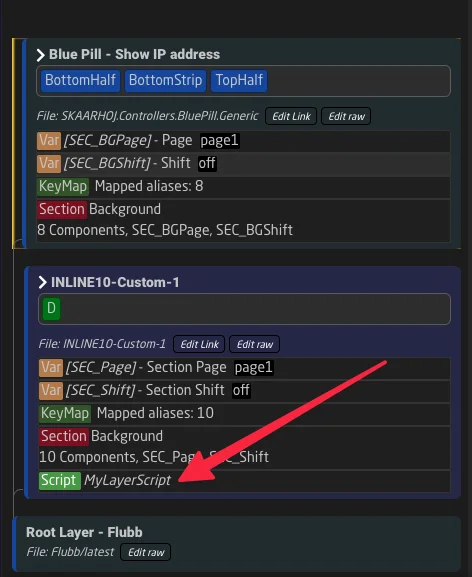
- Add a new script with a unique name
Layer Script Behavior
- Layer Scripts start running when the layer becomes active (based on ActiveIf conditions)
- They stop when the layer becomes inactive or when the script's own ActiveIf condition becomes false
- Multiple scripts can exist on a single layer
- Scripts run in separate threads and don't block each other
Layer Scripts must have a MaxRunTime set (possibly also -1 for unlimited). Without it, the script will not start.
Example: Monitoring State
This Layer Script monitors a variable and logs when it changes (remember to create the variables you use in the script):
var lastValue = "";

while (1 > 0) {
    var currentValue = GetIOReferenceFirstValue("Var:SomeVariable");

    if (currentValue != lastValue) {
        console.log("Value changed from " + lastValue + " to " + currentValue);
        lastValue = currentValue;

        // React to the change
        if (currentValue == "special") {
            SetIOReferenceValues("Var:AnotherVariable", "triggered");
        }
    }

    Sleep(100);  // Check every 100ms
}
Available Functions Reference
The scripting engine provides the following functions for interacting with Reactor:
Sleep(milliseconds)
Pauses script execution for the specified duration.
Parameters:
milliseconds(integer): Duration to pause in milliseconds
Example:
console.log("Starting...");
Sleep(1000);  // Wait 1 second
console.log("Done!");
Calling Sleep() resets the script's idle timeout counter. If a script doesn't call Sleep() within 100ms, it may be terminated. Always include Sleep() calls in loops to prevent timeouts.
GetIOReferenceValues(ioReference)
Retrieves all values from an IO Reference as an array.
Parameters:
ioReference(string): The IO Reference path
Returns: Array of string values
Example:
var values = GetIOReferenceValues("DC:bmd-atem/1/ProgramInputVideoSource/1/");
console.log("Values: " + values);  // e.g., ["1"]

// Access first value
if (values.length > 0) {
    console.log("First value: " + values[0]);
}
GetIOReferenceFirstValue(ioReference)
Retrieves the first value from an IO Reference. This is a convenience function for when you only need a single value.
Parameters:
ioReference(string): The IO Reference path
Returns: String value, or undefined if no value exists
Example:
var source = GetIOReferenceFirstValue("DC:bmd-atem/1/ProgramInputVideoSource/1/");
if (source != undefined) {
    console.log("Current program source: " + source);
}
SetIOReferenceValues(ioReference, value1, value2, ...)
Sets one or more values to an IO Reference.
Parameters:
ioReference(string): The IO Reference pathvalue1...valueN(strings): Values to set
Example:
// Set a single value
SetIOReferenceValues("Var:MyVariable", "newValue");

// Set multiple values
SetIOReferenceValues("Var:MultiValue", "value1", "value2", "value3");

// Trigger an action (empty value triggers actions like Cut or Auto)
SetIOReferenceValues("DC:bmd-atem/1/Cut/1/");
SetIOReferenceValuesWithMeta(ioReference, metaObject, value1, value2, ...)
Sets values to an IO Reference with additional metadata. This is useful for device cores that require extra parameters.
Parameters:
ioReference(string): The IO Reference pathmetaObject(object): JavaScript object with key-value pairs for metadatavalue1...valueN(strings): Values to set
Example:
// Send an email with metadata for recipient, subject, etc.
SetIOReferenceValuesWithMeta(
    "DC:email/1/send_generic_email/",
    {
        "To": "recipient@example.com",
        "Cc": "",
        "Bcc": "",
        "Header": "Alert from Reactor",
        "Body": "This is the email body"
    }
);
GetEvent()
Returns the hardware event that triggered the script. Only meaningful for Event Scripts.
Returns: Event object with properties depending on event type
Example:
var event = GetEvent();

// Check for button press
if (event.Binary != undefined) {
    if (event.Binary.Pressed) {
        console.log("Button pressed, edge: " + event.Binary.Edge);
    } else {
        console.log("Button released");
    }
}

// Check for encoder turn
if (event.Pulsed != undefined) {
    var direction = event.Pulsed.Value > 0 ? "clockwise" : "counter-clockwise";
    console.log("Encoder turned " + direction + " by " + Math.abs(event.Pulsed.Value));
}

// Check for analog input
if (event.Analog != undefined) {
    console.log("Analog value: " + event.Analog.Value);
}
GetFirstTableRowForKey(constantSetName, columnName, matchValue)
Searches a Settings Table (Constant Set) for a row where a specific column matches a value.
Parameters:
constantSetName(string): Name of the Settings TablecolumnName(string): Column to search inmatchValue(string): Value to match
Returns: Row object with all columns, or empty if not found
Example:
// Find a camera configuration by index
var row = GetFirstTableRowForKey("Cameras", "Index", "3");

if (row != undefined && row.DeviceIndex != undefined) {
    var deviceIndex = row.DeviceIndex.Values[0];
    console.log("Camera 3 uses device index: " + deviceIndex);
}
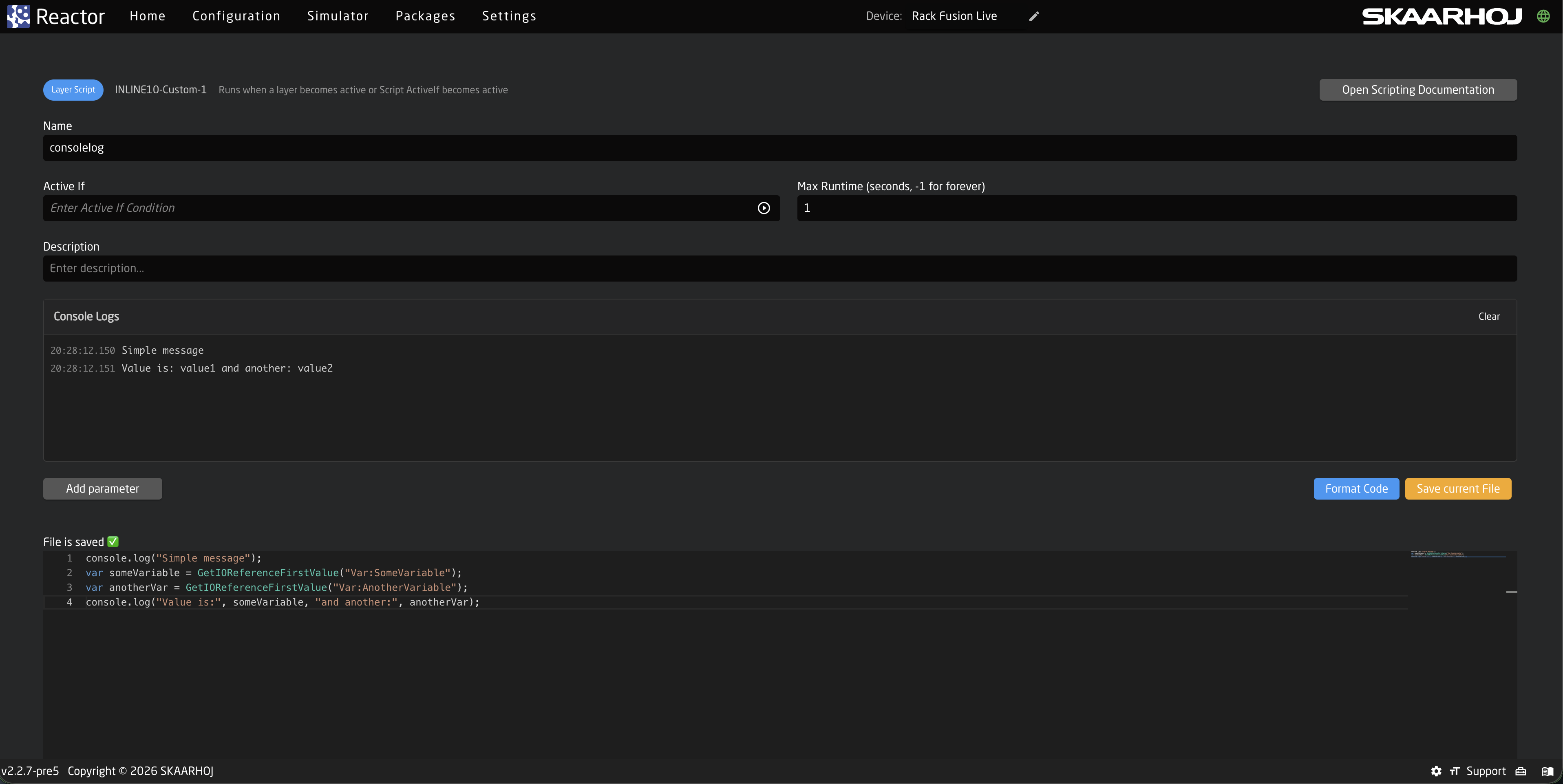
console.log(value1, value2, ...)
Outputs messages to the console log. Messages are visible in Reactor's log output and are also sent to the script editor ui.
Parameters:
value1...valueN(any): Values to log (will be converted to strings)
Example:
console.log("Simple message");
var someVariable = GetIOReferenceFirstValue("Var:SomeVariable");
var anotherVar = GetIOReferenceFirstValue("Var:AnotherVariable");
console.log("Value is:", someVariable, "and another:", anotherVar);
Accessing Script State from Feedbacks
You can use special IO References to check script state and control scripts from behaviors:
Behavior:Script:IsRunning
Returns true if the behavior's Event Script is currently running. Useful for visual feedback.
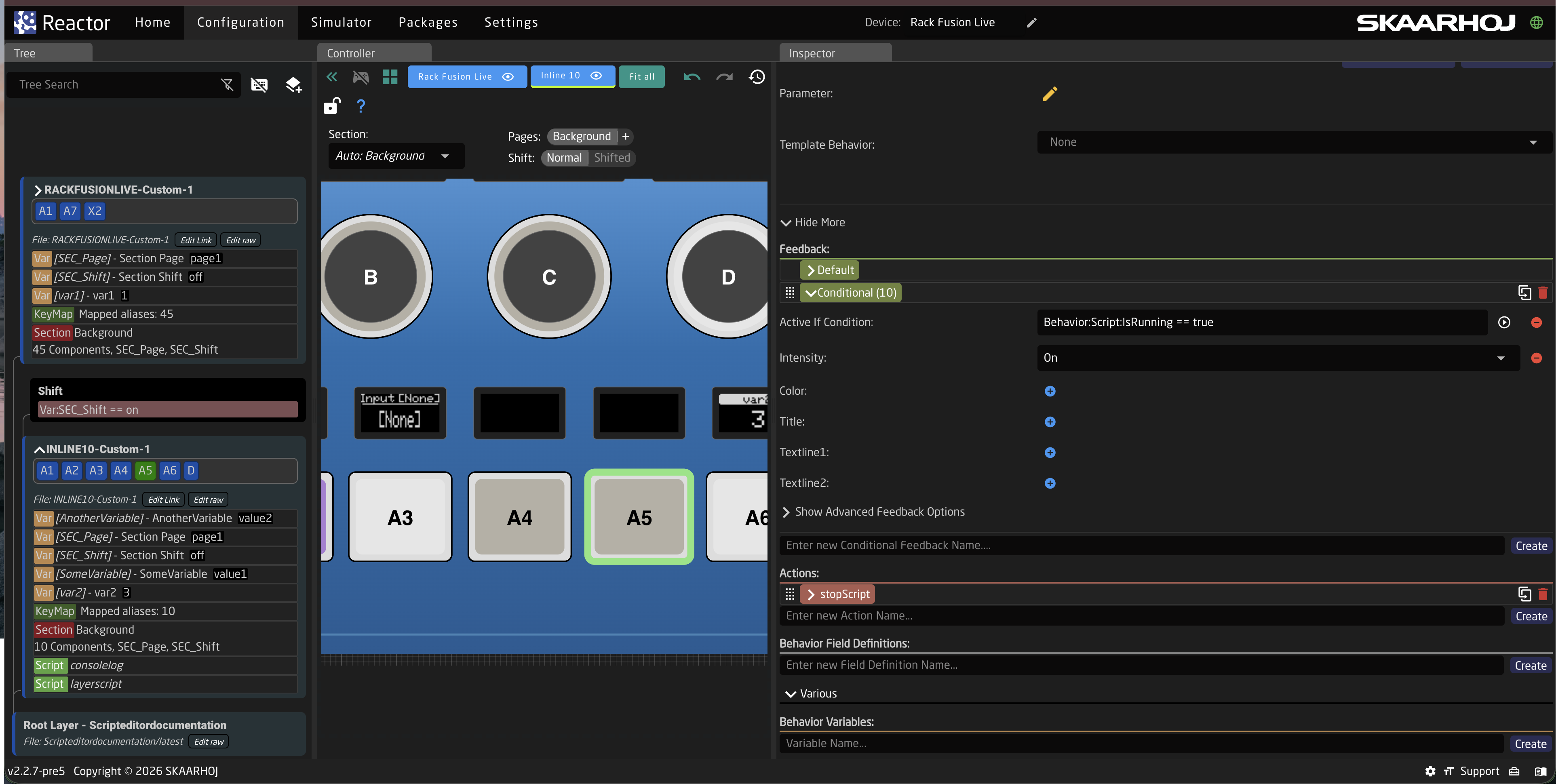
Json example Feedback Configuration:
{
    "FeedbackConditional": {
        "10": {
            "ActiveIf": "Behavior:Script:IsRunning == true",
            "Intensity": "On"
        }
    }
}
This makes the button light up while the script is executing.
Behavior:Script:Stop
An IO Reference that stops the running script when triggered. Can be used in Event Handlers.
Example: Stop script on button release:
{
    "EventHandlers": {
        "stopScript": {
            "AcceptTrigger": "Binary",
            "BinaryType": "ActUp",
            "IOReference": { "Raw": "Behavior:Script:Stop" }
        }
    }
}
JavaScript Interpreter Notes
Reactor uses the Otto JavaScript interpreter, which supports ES5 JavaScript syntax. Keep these limitations in mind:
Not supported (ES6+ features):
- Arrow functions (
=>) letandconst(usevarinstead)- Template literals (
`string ${var}`) - Classes
- Destructuring
- Spread operator
- Promises/async-await
Supported:
- Standard
vardeclarations - Regular functions
- Objects and arrays
for,while,if/else,switchparseInt(),parseFloat(),Math.*functions- String methods
Scripts must call Sleep() at least once every 100ms to avoid being terminated. This prevents infinite loops from blocking the system. For long-running operations, call Sleep(10) periodically even if you don't need the delay.
Practical Use Cases
Use Case 1: Send Email with Dynamic Content
This example shows how to parse text containing IO Reference placeholders and send a dynamic email:
var event = GetEvent();
if ((event.Binary != undefined && event.Binary.Pressed) || event.Pulsed != undefined) {

    // Get email configuration from behavior fields
    var to = parseText(GetIOReferenceValues("Behavior:Field:To"));
    var cc = parseText(GetIOReferenceValues("Behavior:Field:Cc"));
    var bcc = parseText(GetIOReferenceValues("Behavior:Field:Bcc"));
    var header = parseText(GetIOReferenceValues("Behavior:Field:Header"));
    var body = parseText(GetIOReferenceValues("Behavior:Field:Body"));

    if (to != "" && header != "" && body != "") {
        SetIOReferenceValuesWithMeta("DC:email/1/send_generic_email/", {
            "To": to,
            "Cc": cc,
            "Bcc": bcc,
            "Header": header,
            "Body": body
        });
        console.log("Email sent to: " + to);
    } else {
        console.log("ERROR: Missing recipient, header, or body");
    }
}

// Function to parse text and replace {IORef} placeholders with actual values
function parseText(text) {
    var str = new String(text);
    var strResult = "";
    var arrStr = str.split(/[{}]/);

    for (var i = 0; i < arrStr.length; i++) {
        var prefix = arrStr[i].split(":")[0];

        // Check if this segment looks like an IO Reference
        if (prefix == "Var" || prefix == "DC" || prefix == "Const" ||
            prefix == "Behavior" || prefix == "System" || prefix == "Reactor") {
            strResult = strResult + GetIOReferenceValues(arrStr[i]);
        } else {
            strResult = strResult + arrStr[i];
        }
    }
    return strResult;
}
This allows users to configure email templates like:
- Header:
"Alert: {Var:AlertType} on Camera {Var:CameraNumber}" - Body:
"Current tally state: {DC:bmd-atem/1/ProgramInputVideoSource/1/}"
Use Case 2: Automated ATEM USK Transition
This script performs an auto transition on a specific Upstream Keyer while preserving and restoring the transition settings:
function USKlabel(a) {
    return a == 0 ? "BKGR" : "USK" + a;
}

var event = GetEvent();
if (event.Binary != undefined && event.Binary.Pressed) {

    // Get configuration
    var usk = parseInt(GetIOReferenceFirstValue("Behavior:Field:USK"));
    var meRow = parseInt(GetIOReferenceFirstValue("Var:MErow"));

    console.log("Executing USK " + usk + " Auto on ME " + meRow);

    // Store current transition states (BKGR + 4 USKs)
    var nextTransitionStates = [];
    for (var a = 0; a < 5; a++) {
        nextTransitionStates[a] = GetIOReferenceFirstValue(
            "DC:bmd-atem/1/TransitionNextTransition/" + meRow + "/" + (a + 1) + "/"
        );
        console.log("Stored " + USKlabel(a) + ": " + nextTransitionStates[a]);
    }

    // Set transition to only include our USK (disable others first, then enable target)
    for (var a = 4; a >= 0; a--) {
        var newValue = (a == usk) ? "true" : "false";
        if (nextTransitionStates[a] != "---" && nextTransitionStates[a] != newValue) {
            console.log("Setting " + USKlabel(a) + " to " + newValue);
            SetIOReferenceValues(
                "DC:bmd-atem/1/TransitionNextTransition/" + meRow + "/" + (a + 1) + "/",
                newValue
            );

            // Wait for the change to take effect
            for (var wait = 1; wait <= 100; wait++) {
                if (GetIOReferenceFirstValue(
                    "DC:bmd-atem/1/TransitionNextTransition/" + meRow + "/" + (a + 1) + "/"
                ) == newValue) {
                    break;
                }
                Sleep(5);
            }
        }
    }

    // Trigger Auto transition
    SetIOReferenceValues("DC:bmd-atem/1/Auto/" + meRow + "/");
    Sleep(100);

    // Wait for transition to complete
    console.log("Waiting for transition to complete...");
    var completed = false;
    for (var wait = 1; wait <= 100; wait++) {
        if (GetIOReferenceFirstValue("DC:bmd-atem/1/TransitionInTransition/" + meRow + "/") == "false") {
            completed = true;
            break;
        }
        Sleep(50);
    }

    if (!completed) {
        console.log("ERROR: Transition did not complete in 5 seconds");
    } else {
        // Restore original transition states
        for (var a = 0; a < 5; a++) {
            var currentValue = GetIOReferenceFirstValue(
                "DC:bmd-atem/1/TransitionNextTransition/" + meRow + "/" + (a + 1) + "/"
            );
            if (nextTransitionStates[a] != "---" && nextTransitionStates[a] != currentValue) {
                console.log("Restoring " + USKlabel(a) + " to " + nextTransitionStates[a]);
                SetIOReferenceValues(
                    "DC:bmd-atem/1/TransitionNextTransition/" + meRow + "/" + (a + 1) + "/",
                    nextTransitionStates[a]
                );
                Sleep(5);
            }
        }
        console.log("Done");
    }
}
Best Practices and Troubleshooting
Always Check the Event Type
For Event Scripts, always verify the event type before taking action to avoid unintended behavior:
var event = GetEvent();

// Only act on button press, not release
if (event.Binary != undefined && event.Binary.Pressed) {
    // Your code here
}
Use Sleep() Regularly
In loops, always include Sleep() calls to prevent the script from being terminated:
while (1 > 0) {
    // Do something
    Sleep(100);  // Always include this!
}
Handle Undefined Values
IO References may return undefined if the device is not connected or the parameter doesn't exist:
var value = GetIOReferenceFirstValue("DC:bmd-atem/1/SomeParameter/");
if (value != undefined && value != "---") {
    // Safe to use the value
    console.log("Value: " + value);
} else {
    console.log("Parameter not available");
}
Debugging with console.log()
Use console.log() liberally during development. Output appears in Reactor's logs and can be viewed in the UI:
var event = GetEvent();
console.log("Starting script...");
console.log("Event type:", event.Binary != undefined ? "Binary" : "Other");
console.log("Current value:", GetIOReferenceFirstValue("Var:var1"));
Common Pitfalls
- Script doesn't start: Check that MaxRunTime is set (required for Layer Scripts)
- Script terminates unexpectedly: Add Sleep() calls in loops
- Values are undefined: The device may be offline or the parameter path may be incorrect
- Script runs multiple times: Check that you're filtering for the correct event type (e.g., only button press, not release)
- ES6 syntax errors: Remember to use
varinstead oflet/const, and regular functions instead of arrow functions