Remote Panels (RawPanel Mode)
RawPanel Mode allows you to connect SKAARHOJ panels to a Reactor instance running on a different Blue Pill device. Instead of running Reactor locally, the panel exposes its hardware over the network for external control.
Why Use Remote Panels?
Multi-Panel Setups
When you have multiple SKAARHOJ panels across different locations (studios, control rooms, remote positions) or even close by (eg MegaPanel or Sidecar configurations like the Frameshot Shotbox), you can manage them all from a single Reactor instance. This provides:
-
Modular Panel Setups: Devices like the MegaPanel allow several controllers to share shiftlevel, pages and more over the network instantly. This way several Panels can act as one.
-
Unified configuration: All panel behaviors are defined in one place, Update configurations in a central location
Third-Party Integration
The RawPanel Protocol allows SKAARHOJ panels to easily control Supported Applciations, such as
- Softron M-Replay
- Panasonic Kairos
- many more...
On the other side it also enables third-party devices to input into Reactor, such as:
- StreamDecks
- Riedel Smartpanel
- Generic HID Devices
- XKeys
- BlackMagic Zoom and Focus Demands
- ...
This is usually using the XPanel integrations from SKAARHOJ and is license based.
Enabling RawPanel Mode
RawPanel Mode is configured on the Blue Pill that has the panel hardware you want to make available remotely.
Step 1: Access System Settings
Navigate to the Settings page in the System Manager.
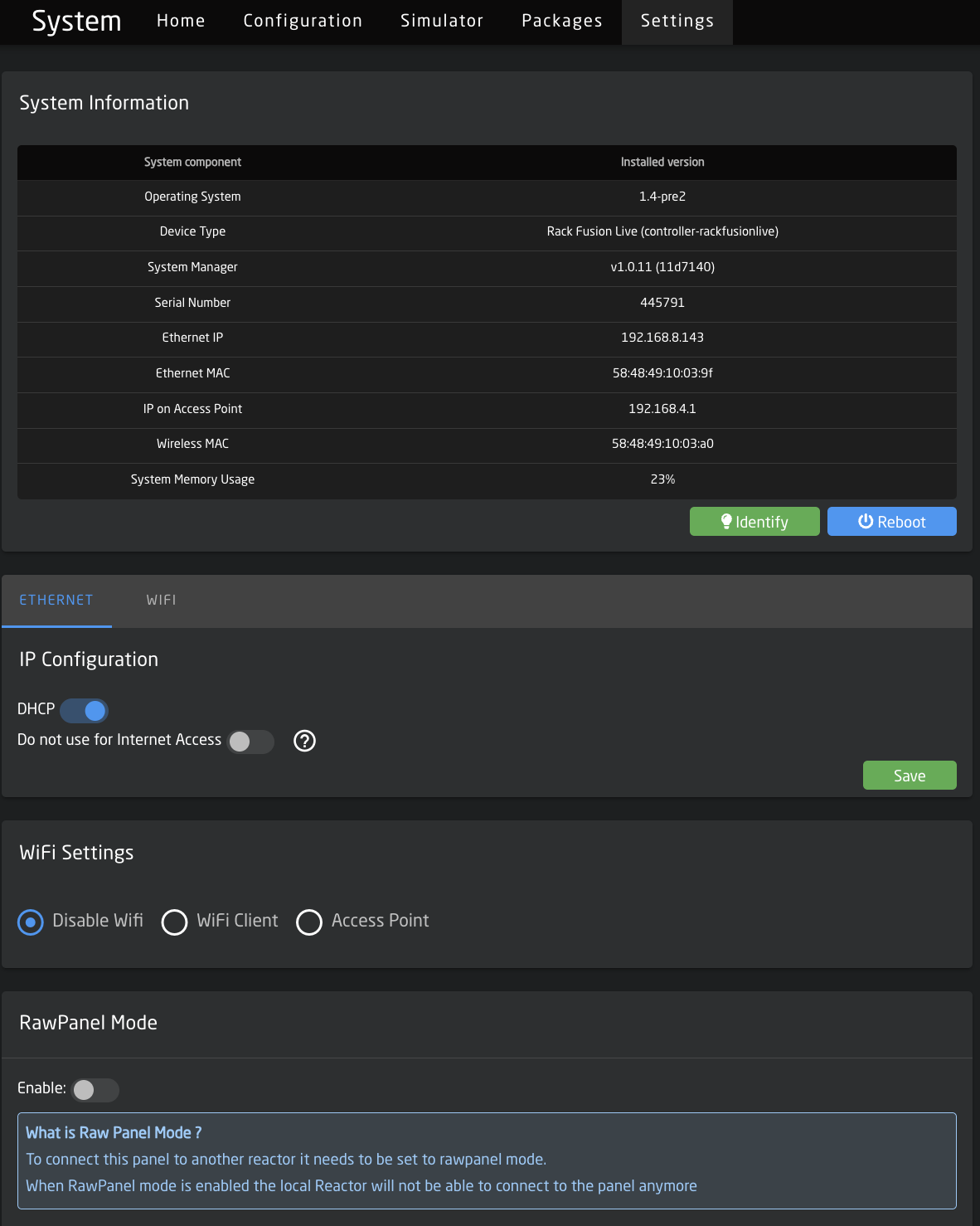
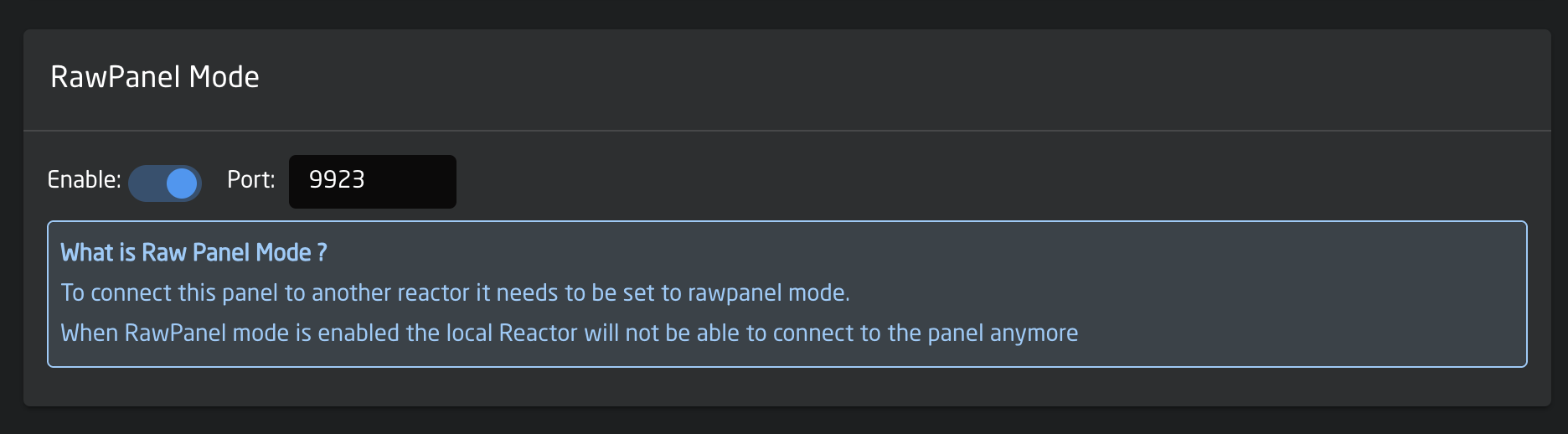
Step 2: Enable RawPanel Mode (and Optionally Disable Reactor)
In the Raw Panel Mode section:
| Setting | Description |
|---|---|
| Enable | Toggle on to activate RawPanel Mode |
| Port | The TCP port the panel will listen on (default: 9923) |
When RawPanel Mode is enabled, the panel is disconnected from the local Reactor instance. After enabling RawPanel Mode, a confirmation dialog will appear asking whether you also want to disable the Reactor package.
Disabling Reactor is recommended for panels used exclusively as remote RawPanels, as it frees up system resources.
If you choose to disable Reactor, the package will be stopped automatically. Reactor can also be disabled manually at any time by navigating to the Packages page, locating the Reactor package, and stopping it, you can then also disable the autostart switch, to avoid a restart on the next reboot.
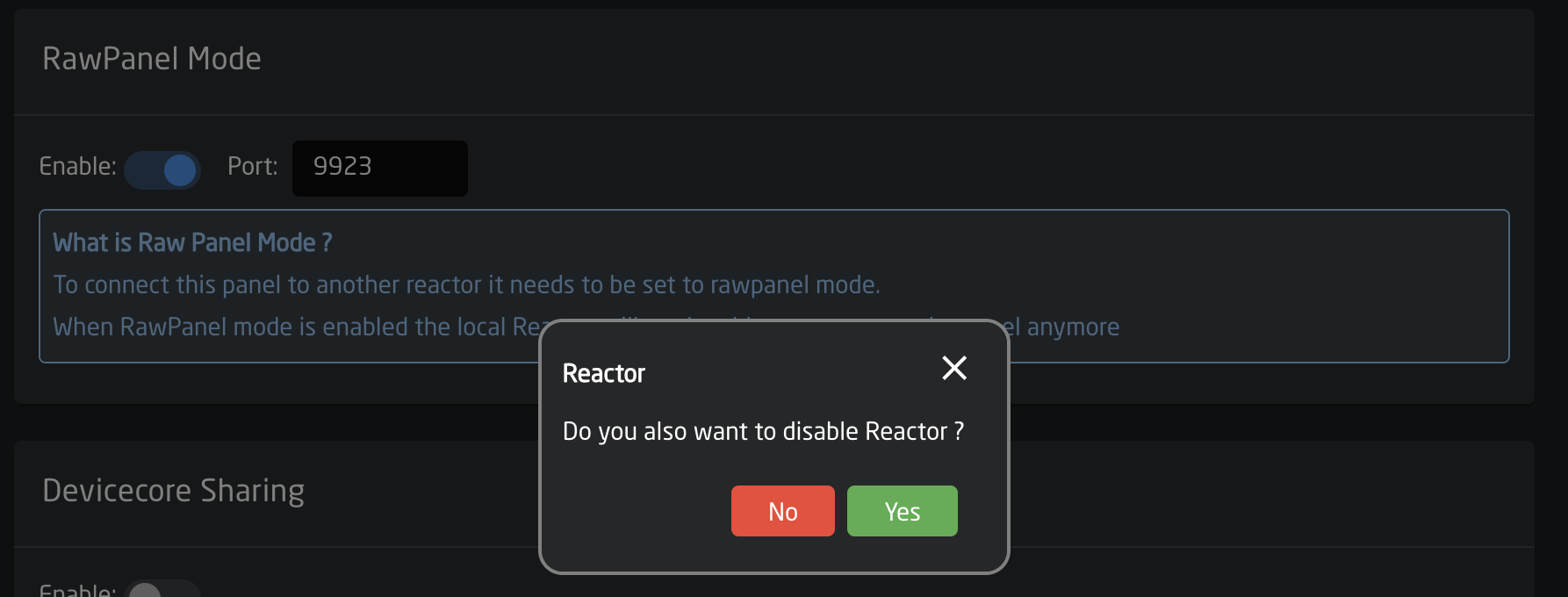
Enabling RawPanel Mode means the panel will no longer respond to local configurations if reactor is still in use. The panel will show "Disconnected" in the local reactor.
With Reactor disabled, you will only have access to the Packages and Settings pages in the web interface. The Home, Configuration, and Simulator pages will be unavailable.
Connecting to a Remote Panel
Once a panel is in RawPanel Mode, you can connect to it from another Blue Pill running Reactor.
Step 1: Add the Panel
On the Blue Pill running Reactor:
- Go to the Home page
- In the Panels section, click Add Panel
- The remote panel should appear in the discovery list if on the same network
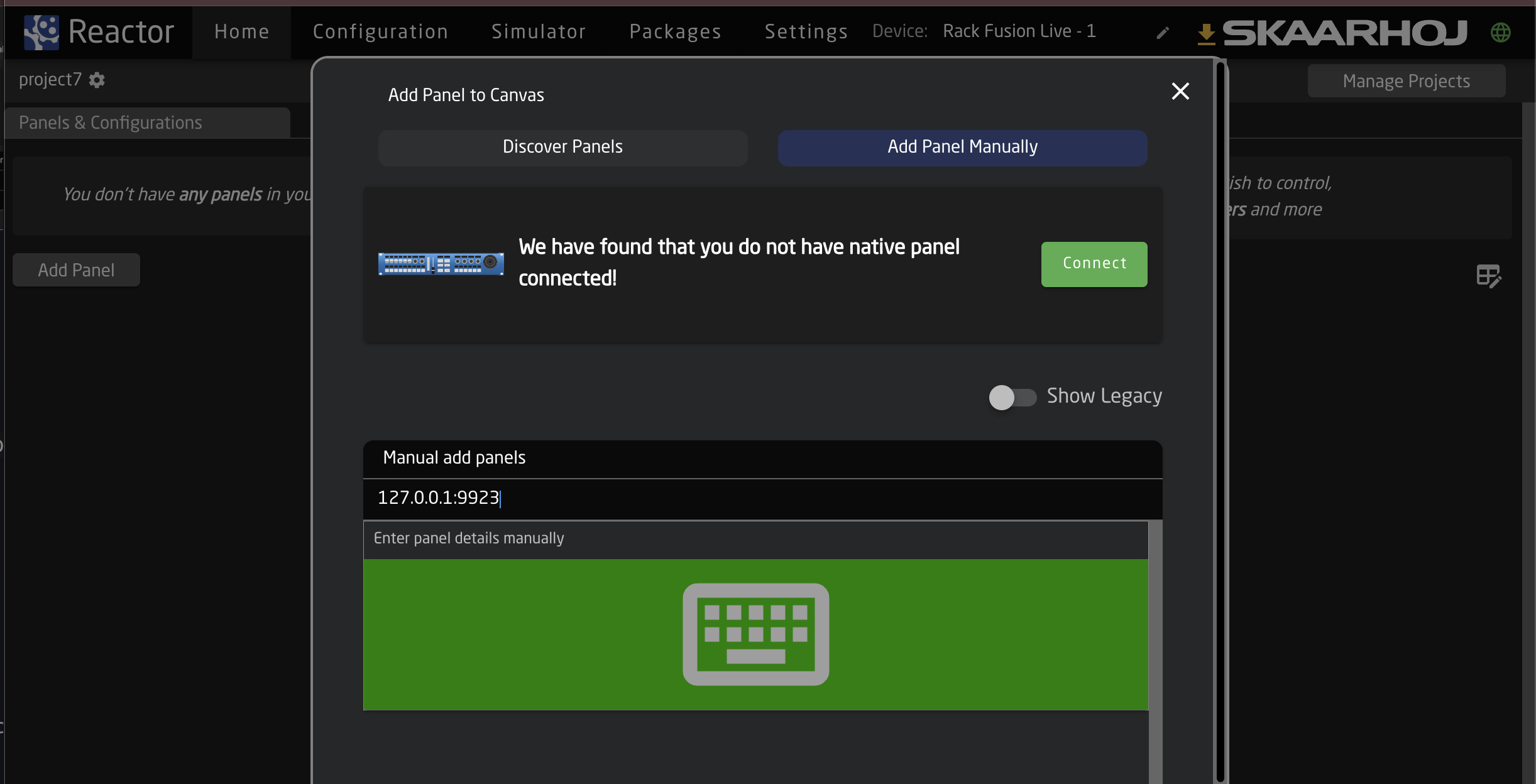
Step 2: Manual Configuration (if needed)
If the panel doesn't appear automatically:
- Click Add manually
- Enter the panel's IP address and port (e.g.,
192.168.1.100:9923) - Configure panel model and settings as needed
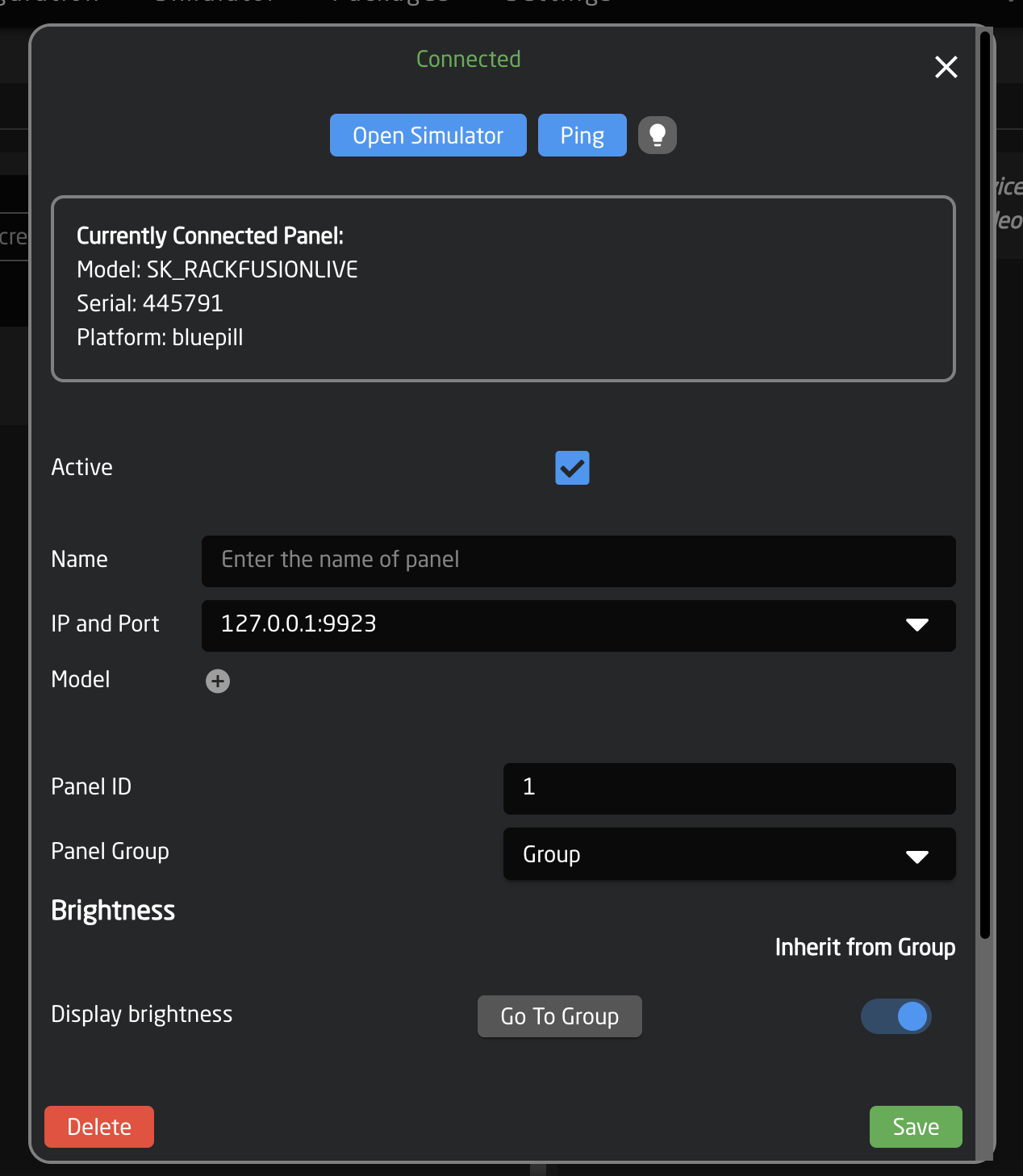
Step 3: Verify Connection
After adding the panel:
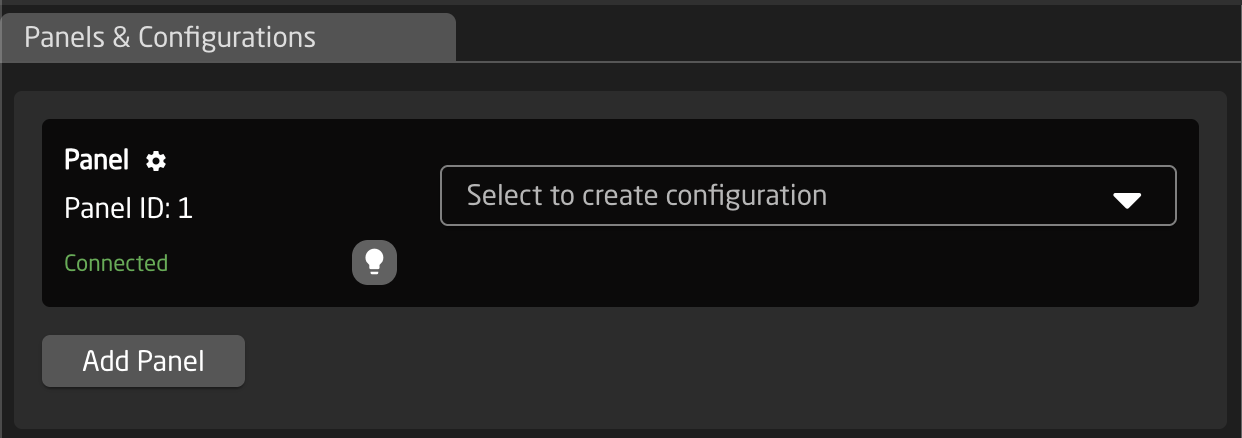
- Check the panel status indicator on the Home page
- The panel should show as connected (green status)
- You can now select configurations for this panel like any local panel
Panel Configuration Options
When editing a remote panel's connection settings, you can configure:
| Setting | Description |
|---|---|
| IP and Port | The network address of the remote panel |
| Name | A friendly name for identification |
| Model | The panel model (for topology information) |
| Serial | Filter by specific hardware serial number |
Reactors Panel Connection includes a few tricks for reliability:
- Automatic reconnection: If the network connection drops, Reactor will automatically attempt to reconnect
- Failover addresses: You can specify multiple IP addresses (comma-separated) for redundancy
- mDNS discovery: Panels can be found by their
.localhostname on supporting networks
Troubleshooting
Panel Not Discovered
- Verify both devices are on the same network
- Check that RawPanel Mode is enabled and the port is correct
- Ensure no firewall is blocking TCP traffic on port 9923 (or your configured port)
- Try adding the panel manually using its IP address
Connection Unstable
- Check network reliability between devices
- Consider using wired Ethernet instead of WiFi for critical applications
- Verify no IP address conflicts exist
Panel Not Responding
- Confirm RawPanel Mode is still enabled after any device restarts
- Check that no other application is connected to the panel (only one connection at a time)
- Verify the panel hardware is functioning correctly (LEDs, buttons responding locally)
Development Tools
Two companion applications are available for developing and testing with the RawPanel protocol. Together they let you emulate panels without physical hardware and inspect the protocol communication in detail.
RawPanel Dummies (Panel Emulator)
RawPanel Dummies emulates SKAARHOJ hardware panels in your web browser using the RawPanel protocol. This lets you test configurations and develop integrations without needing physical controllers.
Key features:
- Emulates a wide range of SKAARHOJ controllers in a browser window
- Includes topologies for legacy UniSketch-based panels
- Can simulate third-party devices such as StreamDecks
- Provides Crestron USP/USH modules for SIMPL Windows integration
To use it, start the application and connect Reactor to the emulated panel just like you would with a real remote panel. The dummy panel appears on the network and can be discovered or added manually by IP address.
Download: RawPanel Dummies Releases on GitHub
RawPanel Explorer (Protocol Inspector)
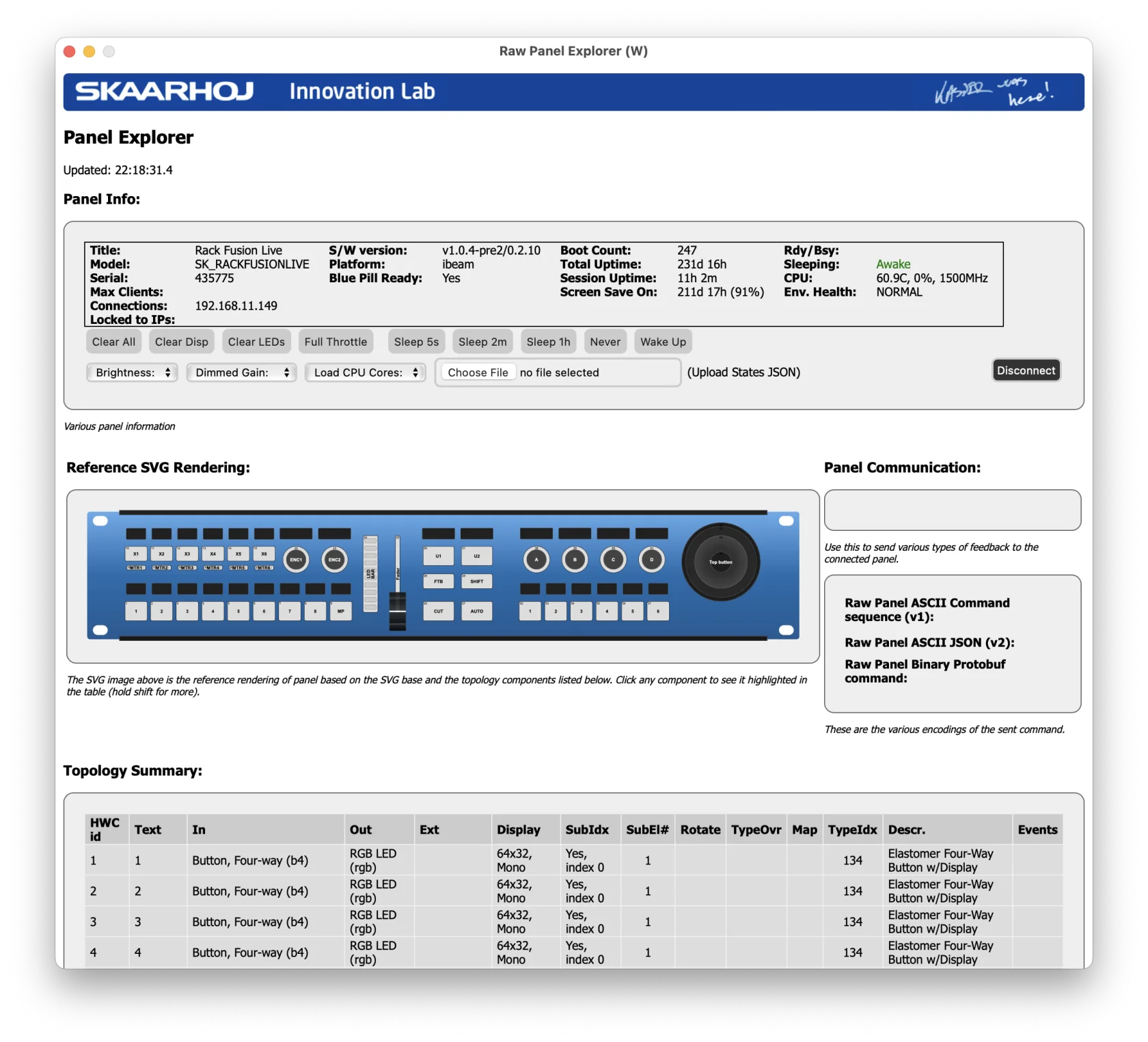
RawPanel Explorer is a discovery and diagnostic tool that scans your network for RawPanel devices and lets you connect to them to explore their properties and protocol commands.
Key features:
- Discovers RawPanel devices on the network via mDNS
- Connects to panels and inspects topology, state, and events
- Visualizes panel layouts with interactive SVG graphics
- Includes event plotting and VU meter demos
- Available as CLI or GUI application for both macOS and Windows
Use RawPanel Explorer to understand how the protocol works, inspect live panel state, and debug connectivity or integration issues.
Download: RawPanel Explorer Releases on GitHub