Shared Device Cores
Device Core Sharing allows Reactor to use device cores running on a different Blue Pill Server or Blue-Pill-Inside device.
Why Share Device Cores?
Hardware Connection Requirements
Some device cores require direct physical connections:
- USB: Some camera control systems, specialized hardware
- Serial/RS-422: PTZ cameras, legacy routers, certain production equipment
When equipment requires these connections, you need a Blue Pill physically present at the equipment location. Device Core Sharing lets your main Reactor instance access these locally-connected cores.
Example: Camera control via serial connection. A Blue Pill near the cameras has the physical serial connections and runs the camera device core. Your panel's Reactor connects to this shared core.
Load Balancing Across Controllers
When you have a large number of devices to control (for example, 20 or more), running all device cores on a single Blue Pill can strain system resources. By distributing device cores across multiple controllers, you can:
- Balance processing load: Each Blue Pill handles a subset of device protocol communication
- Improve system stability: No single point of failure for all device connections
- Scale flexibly: Add more Blue Pills as your facility grows
Example: A facility with three operator positions and 20 devices. Instead of each Blue Pill running all 20 device cores:
- Controller A runs cores for devices 1-7
- Controller B runs cores for devices 8-14
- Controller C runs cores for devices 15-20
Each Reactor instance connects to the shared cores on the other controllers. Any operator can control any device, but the protocol processing is distributed across all three Blue Pills.
Geographic Latency
When controlling devices across long distances (different buildings, cities, or continents), network latency can significantly impact the responsiveness of device protocols. By placing the device core close to the equipment:
- Protocol communication between the device core and equipment has minimal latency
- Blue Pill-to-Blue Pill communication handles the longer distance more gracefully
- User experience remains responsive even with geographic separation
Example: An ATEM switcher at a remote broadcast venue. A local Blue Pill runs the ATEM device core, communicating directly with the switcher. Your main Reactor instance at headquarters connects to this shared core over the internet.
Limited Client Connections on a device
Some devices, eg some PTZ Cameras do not allow more than a certain number of connections before running into issues. This has also been a case for earlier versions of the ATEM Mixers. If we now want to use several controllers, GPI Boxes and other devices to access them you might run into trouble. This is why sharing the same devicecore can be beneficial, so that the end device only sees one connection.
Example: A older ATEM Switcher shall be used to provide Tally feedback to several PTZ Extremes and RCPPros. more than 5 connections to the device are not possible. To solve this, we setup one device to connect to the atem core, and add this device on all others as "remote devicecore".
Enabling Device Core Sharing
Device Core Sharing is configured on the Blue Pill that will host the device cores (the one with direct access to the equipment).
Step 1: Access System Settings
Navigate to the Settings page in the main Menu.
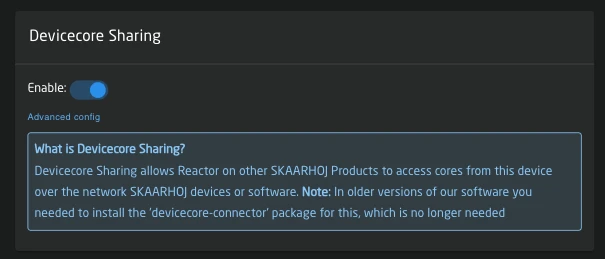
Step 2: Enable DeviceCore Sharing
In the Devicecore Sharing section:
| Setting | Description |
|---|---|
| Enable | Toggle on to allow remote access to device cores |
| Advanced Config | Access detailed sharing permissions |
Step 3: Configure Access Permissions (Optional)
Click Advanced Config to manage which cores are shared and authentication settings:
- Define which specific device cores can be accessed remotely
- Set up authentication requirements for each core
- Control access on a per-core basis
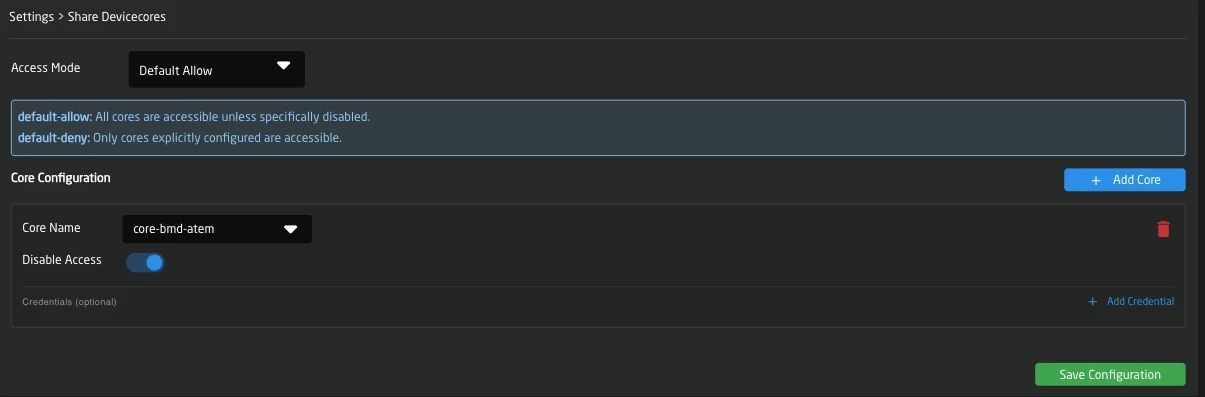
By default, all device cores on the hosting Blue Pill become available when sharing is enabled. Use Advanced Config to restrict access if needed.
Connecting to Shared Device Cores
Once sharing is enabled on the hosting Blue Pill, you can connect from another Reactor instance.
Make sure for each core (eg core-bmd-atem) every DeviceID is unique! else Reactor might stop processing till the issue is resolved. This is only relevant if you add for example multiple atem cores in your config, or combine local and shared cores.
Method 1: Select from Discovery
On your main Reactor instance:
- Go to the Home page
- Click Add Device in the Devices section
- Search for Shared Core in "Discover Devices" (not the specific device core name)
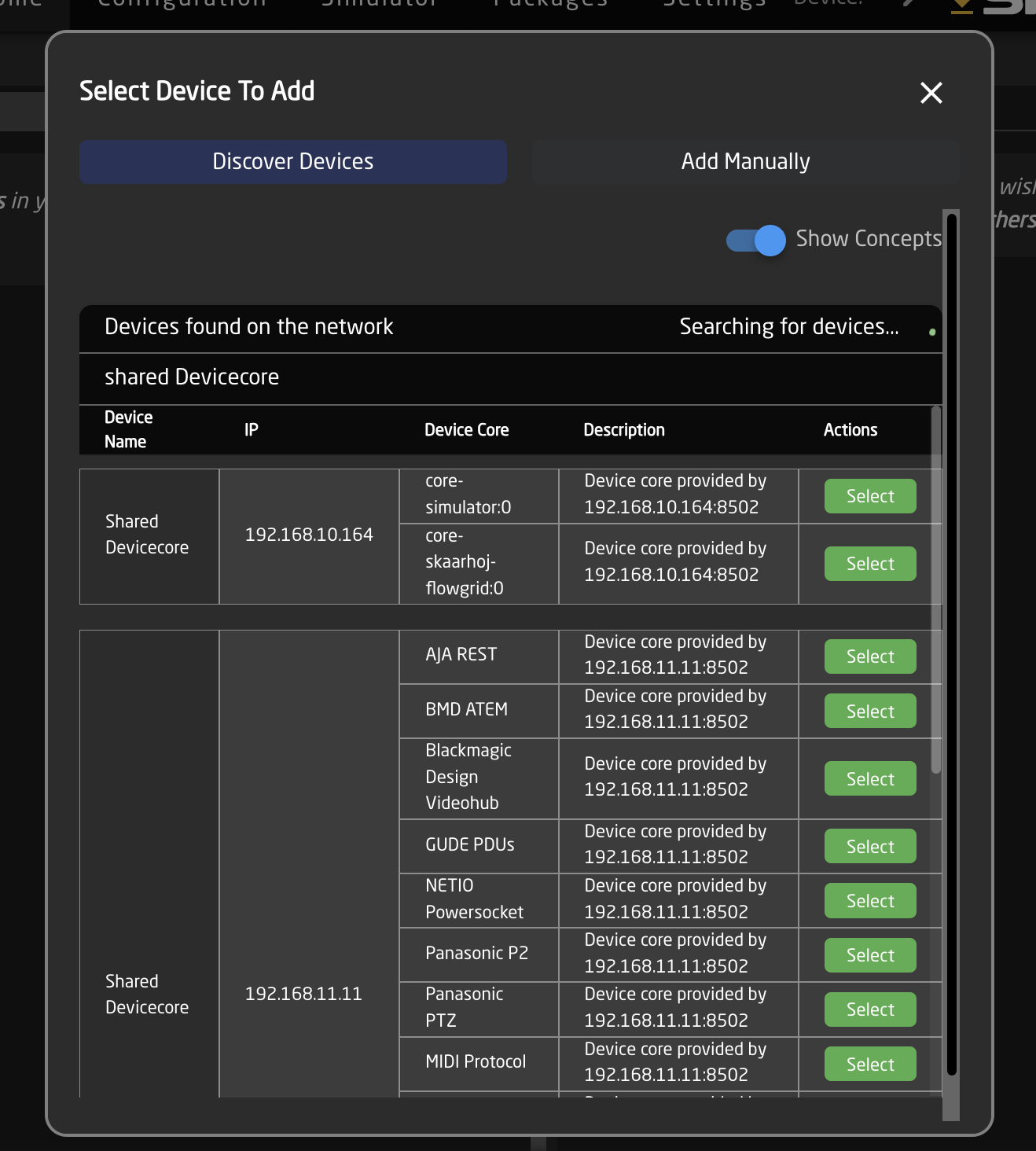
When adding a core, all devices configured on it are automatically added to your configuration
Method 2: Manual Configuration (if needed)
If auto-discovery doesn't find the remote host:
- Click Add manually
- Select Remote option from the device list
- Enter the IP address of the hosting Blue Pill
- All shared cores from your bluepill will then be listed, select the one you like to add. If you want to add multiple, simply repeat the process.
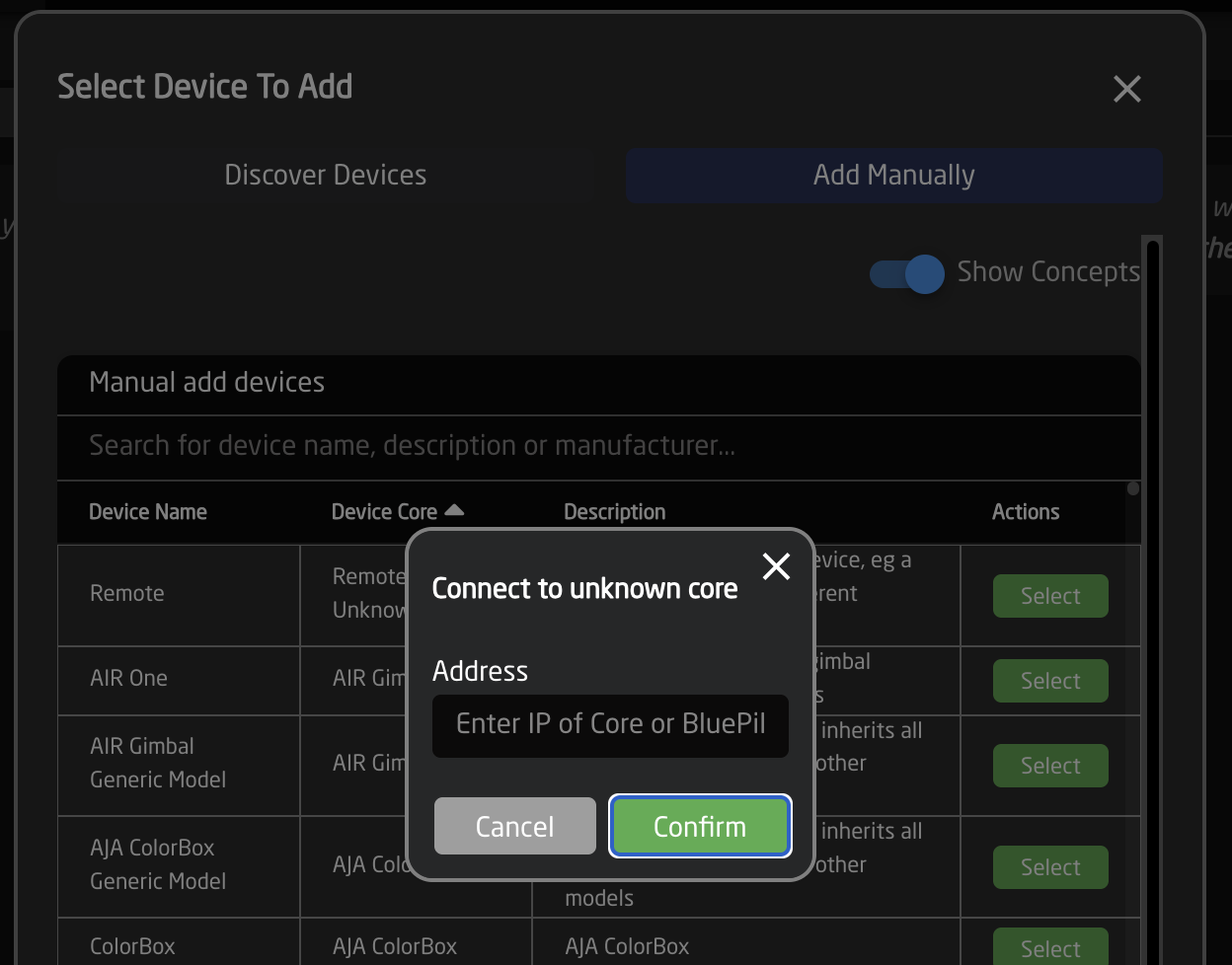
When searching for shared cores in "Add manually" use the "Remote" option and enter the IP of the remote Blue Pill device, not your end device
Configure Core Details
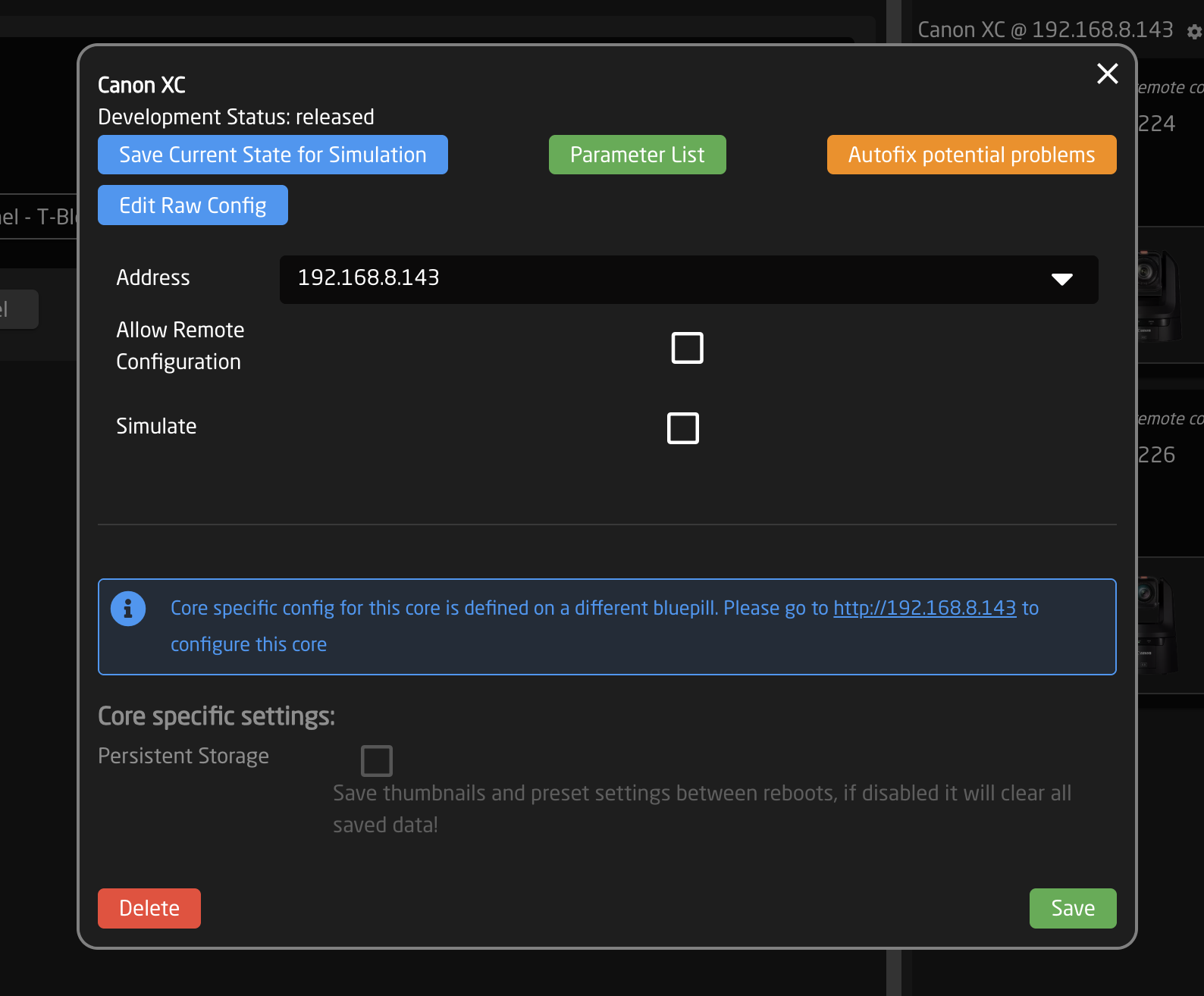
When a core is added as a Shared Core, its configuration is disabled on this Reactor instance. You must open the Blue Pill that hosts the core to configure it.
If you want to configure it from this reactor instance, enable Allow Remote Configuration in the shared core settings.
Only one Bluepill should manage a remote core at the same time, this is an advanced option, please leave disabled if unsure, and use the remote Bluepill's UI to configure your devices
Network Considerations
Default Port
Device Core Sharing uses port 8502 by default. Ensure this port is accessible between devices.
TestTube for Development and Validation
When you need deeper inspection or repeatable testing of shared Device Cores, use TestTube (aka ibeam-testtube).
TestTube is a development tool for inspecting and testing remote Device Cores, with both a browser-based UI and CLI workflows.
Typical Use Cases
- Interactive parameter testing in a Web UI
- See the devicecore's internal state and interact with it
- Test Network discovery of devices via mDNS, SSDP, and Panasonic UDP broadcast
Installation Options
You can install and run TestTube in two ways:
- On skaarOS (Blue Pill): install the
TestTubepackage from the Packages page or upload the.ipksfrom devices.skaarhoj.com when offline - On a computer (macOS/Windows/Linux): download the platform binary from the releases repository and run it as a CLI tool
Releases repository: SKAARHOJ/ibeam-testtube-releases
Troubleshooting
Shared Core Not Discovered
- Verify DeviceCore Sharing is enabled on the hosting Blue Pill
- Check both devices are on the same network or have routing configured
- Ensure port 8502 is not blocked by firewalls
- Try manual configuration with the direct IP address
Connection Refused
- Confirm the hosting Blue Pill is running and accessible
- Check Advanced Config on System Settings Page for access restrictions (See Devicecore Sharing)
- Ensure the device core is actually running on the remote host
Device Not Responding
- Check the device connection on the hosting Blue Pill first
- The device must be working locally before it can be shared
- Verify network stability between the two Blue Pills
Configuration Not Syncing
- Shared cores may have their configuration managed remotely
- Check if
Enable Remote Configis set appropriately - Review which Blue Pill should be the source of truth for device settings